 SpiderFolio
Administration
SMTP email
The installation's email server, each company's custom sender in Security › Email, how to test it and how to stay out of spam with SPF, DKIM and DMARC.
SpiderFolio sends emails to confirm accounts, recover passwords, invite people, send document notices and share links. There are two levels:
- The installation’s SMTP (required): set up by whoever runs the server and used by every company.
- The company’s custom sender (optional): each company can send its emails from its own SMTP server and with its own address.
The installation’s SMTP
It goes in deploy/.env. Your company’s server works, or a transactional service (Resend, Postmark, Amazon
SES…).
| Variable | What to put |
|---|---|
SMTP_HOST |
The SMTP server, for example smtp.your-provider.com. |
SMTP_PORT |
587 (STARTTLS, the usual one) or 465 (direct TLS). |
SMTP_USER, SMTP_PASS |
Username and password. Leave them empty if your server doesn’t require authentication. |
MAIL_FROM |
The sender, in quotes: "SpiderFolio <no-reply@your-domain.com>". It must be an address your server lets you use. |
SMTP_HOST, SMTP_PORT and MAIL_FROM are required: if one is missing, the API doesn’t start and the log
says which one. After changing them, apply with docker compose up -d from the deploy folder.
To check it works, open the sign-in screen, click Forgot your password? and request the link for your own email.
Account emails (confirming the email, the password, signing in) are always sent through this server, even if the company has a custom sender. More variables in Configuration.
The company’s custom sender
With it, your company’s emails (invitations, document notices, shares) go out from your SMTP server and with
your address, for example notices@yourcompany.com, instead of the installation’s sender.
Where to find it
In Administration › Security, Email tab. You need the Manage security capability. The owner sees the General and Email tabs; admins only see Email.
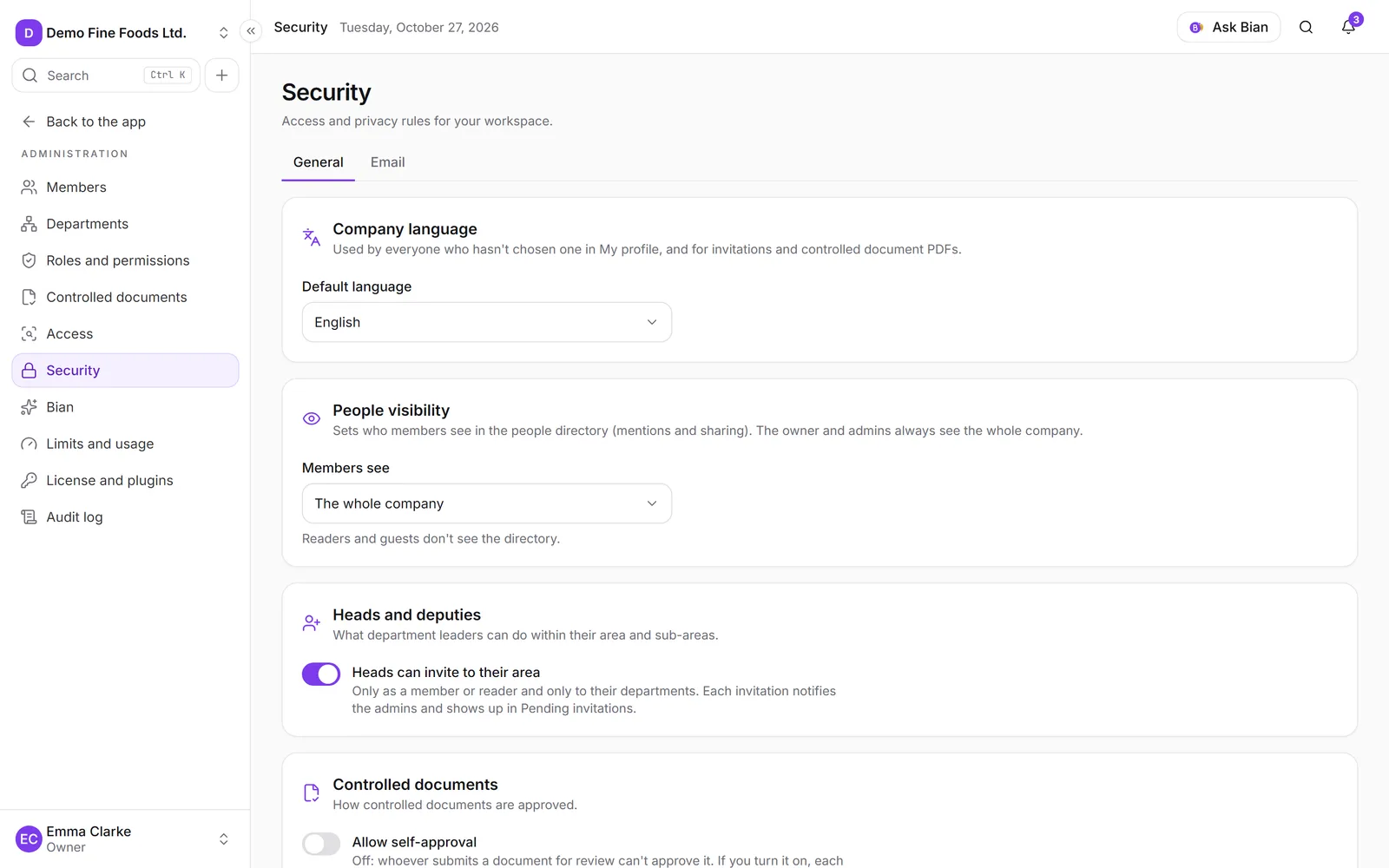
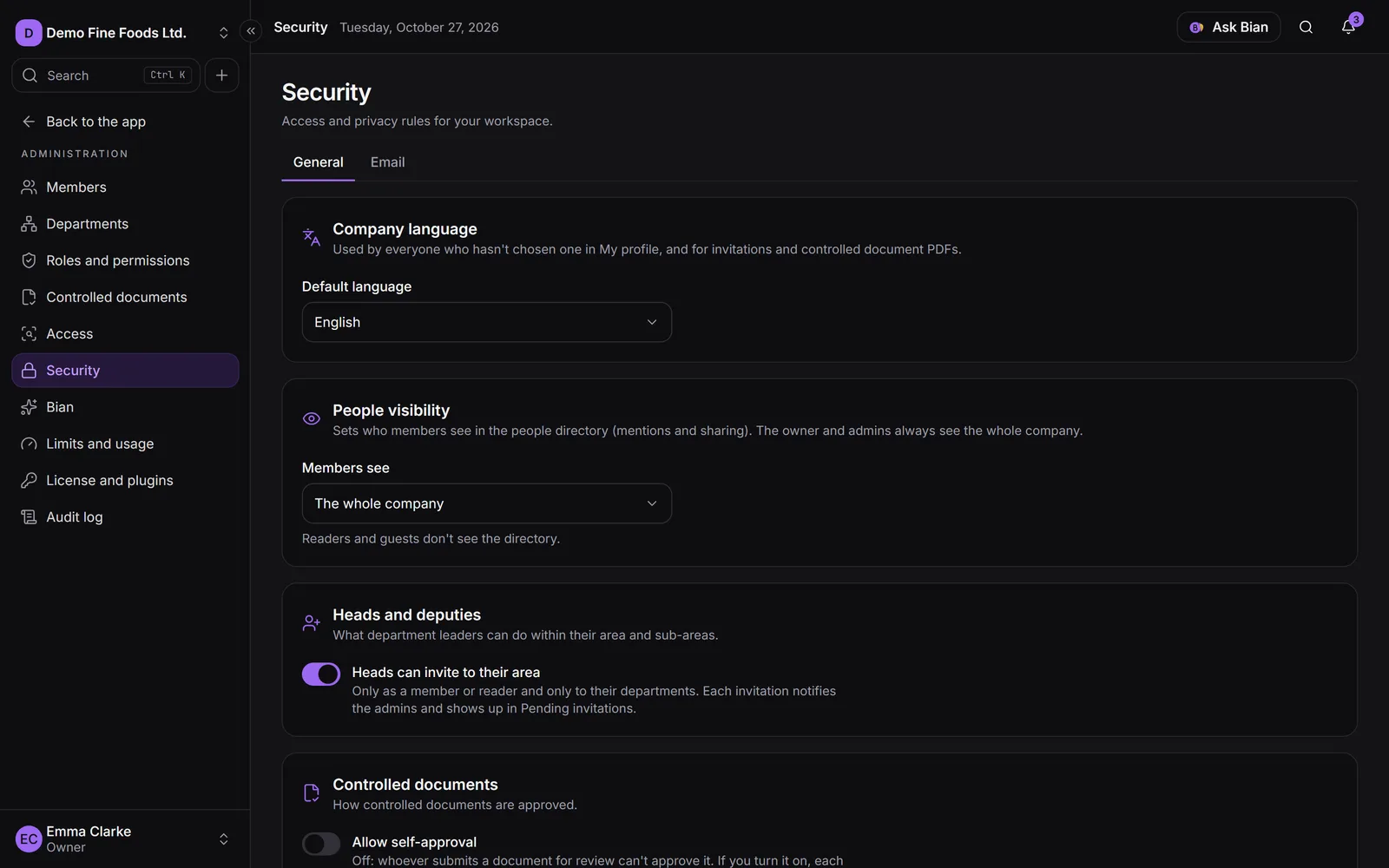
If you see “The custom sender isn’t available on this server,” the installation is missing
EMAIL_ENCRYPTION_KEY, the key used to store your SMTP password encrypted. Ask whoever runs the server.
Set it up
- Fill in the server details:
- SMTP server: it must be a public address; internal network addresses aren’t accepted.
- Port: 25, 465, 587 or 2525.
- Security: STARTTLS (port 587) or TLS (port 465).
- Username (optional) and Password. The password is stored encrypted and never shown again; to keep the current one, leave it empty.
- Fill in the sender: Sender name, Sender address (one your server lets you use) and, if you like, Reply-to (optional).
- Click Save.
- Click Send test email. The test goes to your email, never to anyone else. You can send up to 5 per hour (and 20 per hour across the whole company).
- If the test arrived fine, click Turn on.
At the top you see the status: Not active, Active or Disabled, and whether the settings are Tested or Not tested. If you change anything and save, it goes back to Not active until you send another test. To stop using it, click Turn off.
If the test fails, we tell you why: username or password rejected, couldn’t connect (check server, port and security), the secure connection failed, the server rejected the sender, or the server wasn’t found.
If your server fails
Nobody misses their notice:
- If a send fails, that email still goes out through the installation’s server, with the name “Your company (via SpiderFolio)” and your address as Reply-to.
- The owner and the admins with Manage security get a notification in the bell and by email (at most one per hour). The Email tab also shows the last error.
- After 3 failures in a row, the custom sender switches to Disabled. Fix the settings, send a test and turn it on again.
Verified domain
Below you’ll see Verified domain: a way to send from your domain without a password, by creating DNS records. In this version it shows “Sending with a verified domain will be available soon.”
Keep your emails out of spam
This applies both to the installation’s MAIL_FROM and to the custom sender. In the DNS of the sender
address’s domain, create these records with the values your email provider gives you (in the Email tab,
the Are your emails going to spam? section has the same guide with examples to copy):
- SPF: a TXT record that says which servers can send on your behalf. There can only be one: if you already
have one, add your provider’s
include. Example:v=spf1 include:spf.your-provider.com ~all. - DKIM: your provider generates a key and gives you a TXT or CNAME record (for example,
selector._domainkey.yourdomain.com). Create it exactly as they tell you. - DMARC: a TXT record on
_dmarc.yourdomain.com. Start withp=none(monitor only) and, once everything is delivered fine, move toquarantine. Example:v=DMARC1; p=none; rua=mailto:dmarc@yourdomain.com.
To check it, send the test email to your inbox and make sure it’s not in spam. If it lands in spam, check that SPF and DKIM are set up correctly (DNS changes can take a few hours) and that the sender address is on your domain.
Audit log
Saving the settings, sending tests, turning the sender on or off and every email that went out through the fallback are recorded in the audit log, under the Company email area. The password is never stored there.