 SpiderFolio
For users
Approvals
Send a controlled document for review, approve it, request changes or reject it, and the Approvals inbox.
What they’re for
Before a version of a controlled document becomes the current one, someone with authority has to review and approve it. Everything is recorded in the document’s history and in the audit log.
Who can approve
- The owner and admins.
- Anyone whose role has the Approve documents capability.
- The head or deputy of the document’s responsible department, or of one of its parent departments.
They also have to be able to see the document: nobody approves what they can’t see. Whoever sends a document can’t approve it, unless the owner turns on Allow self-approval in Administration › Security; in that case it’s recorded as “approved (the author)”.
Send for review
You need to be able to edit the document, and its newest version must be a Draft.
- Open Document control (on a page, from More actions; on a file, from its menu) and click Send for review.
- Check the Responsible department. If needed, click Change department: its head is the suggested approver.
- Under Who approves, check the people. Each one shows why they can approve (“Head of Quality”, “Admin”, “Can approve”). If you choose several people, all of them must approve.
- If someone can’t see the document, they show as “Doesn’t have access to this document”. If you manage access, click Give access to review to give them read-only access.
- Write one line for the reviewer in What changed (optional) and click Send for review.
While it’s in review, the content is frozen: nobody can edit it. If you need to change something, Withdraw from review sends it back to draft (the approvals for that submission are lost) and you can send it again. Whoever sent it, or whoever manages the document, can withdraw it.
The Approvals inbox
If you can approve documents, the side menu has Approvals: the documents waiting for your approval, with their code, version and who sent them. They also show up in My to-dos on Home, and you get a notification (“Pending approval: “…””).
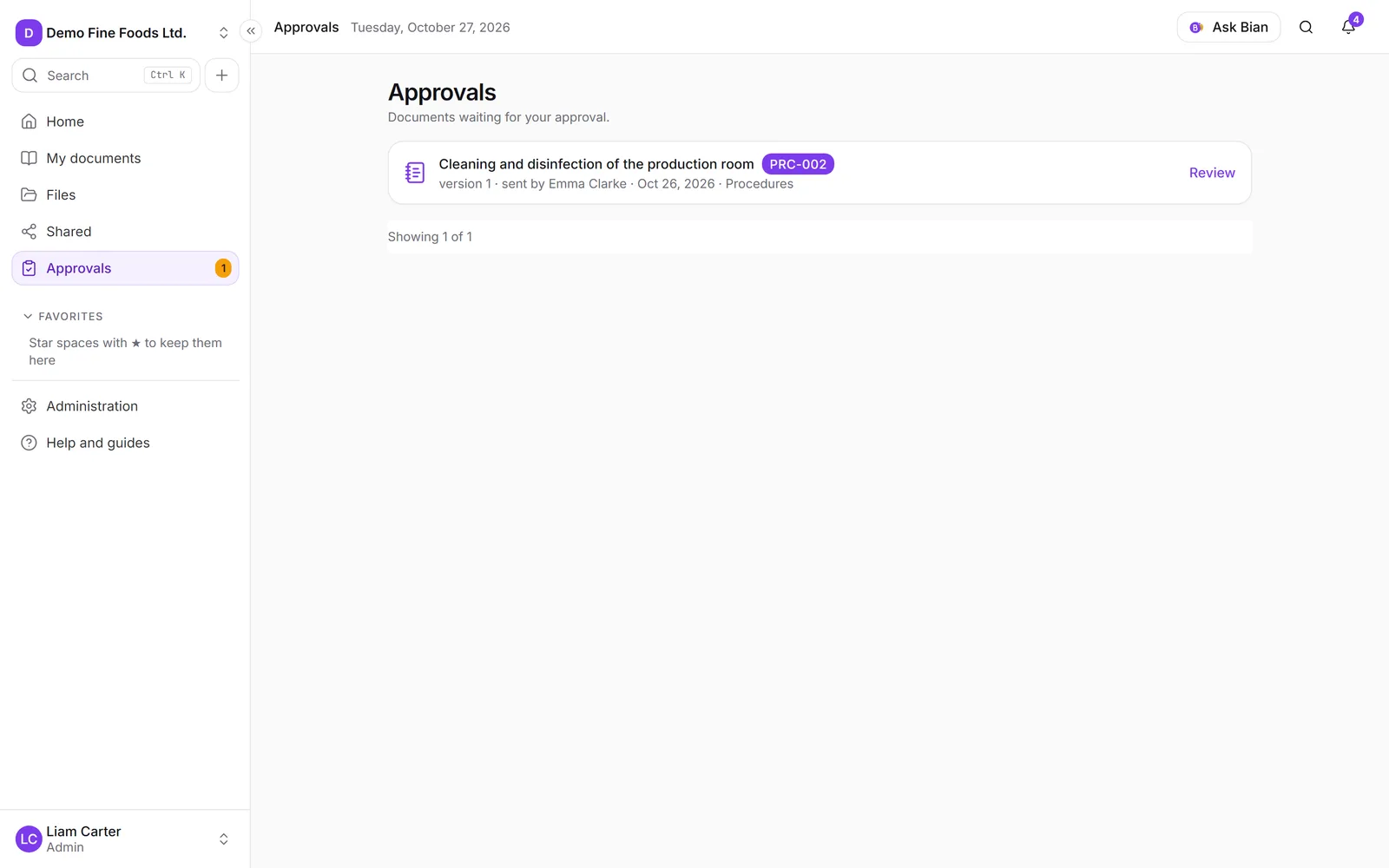
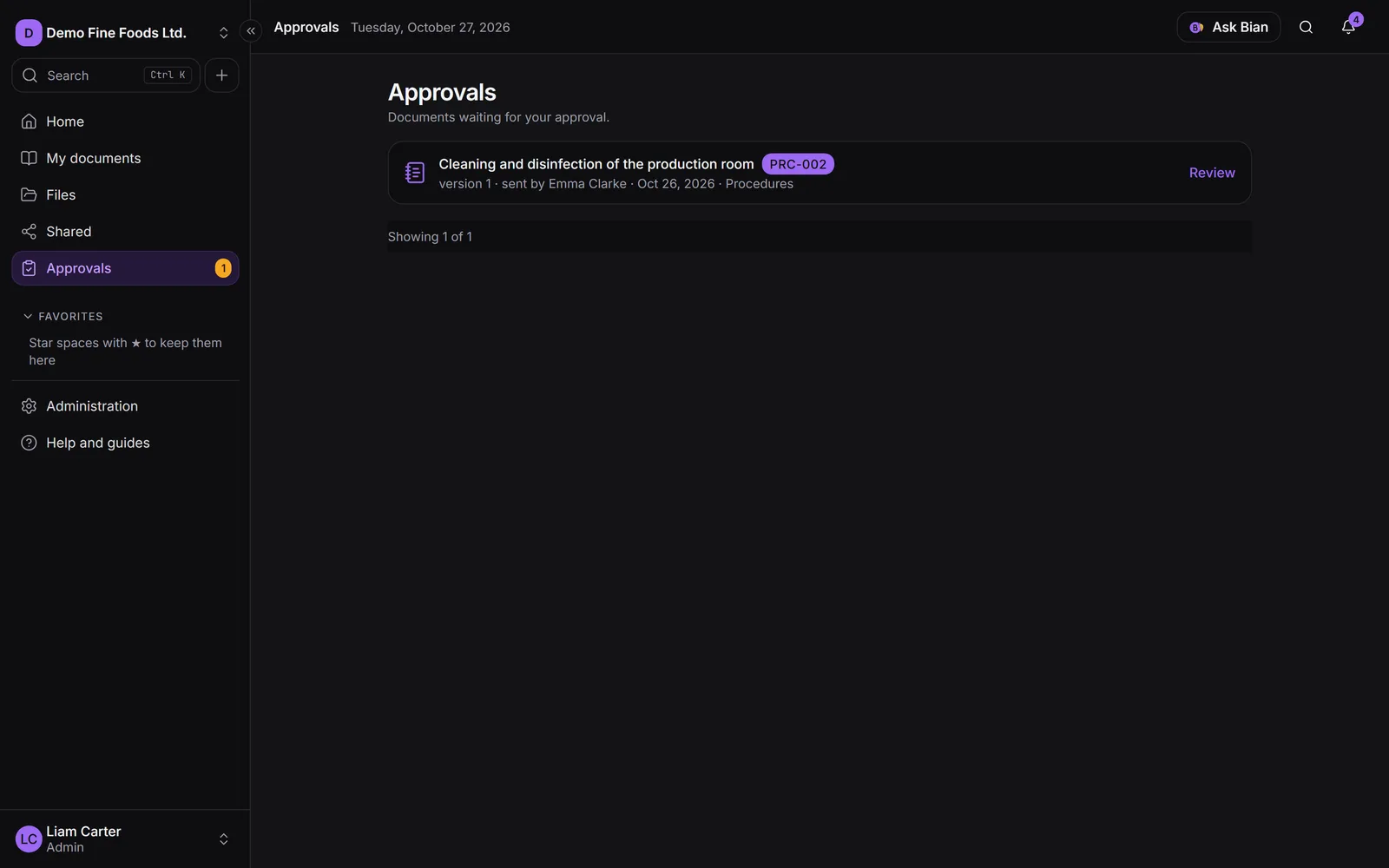
Click Review to open the document. On a page, reviewers see the version in review, not the current one. For a file, the inbox takes you to its space: open it from its menu.
Review and decide
- Read the document. To comment on the text, select a passage and use Comment (see Pages); the content stays frozen.
- Open Document control and choose:
- Approve: you can leave an optional comment. If you’re the last person left, the document becomes Approved and ready to publish.
- Request changes: write the Reason. It goes back to draft with your comments open, and whoever sent it is notified. They can fix it and send it again.
- Reject: write the Reason. The version is discarded and stays in the history: it isn’t published. If there was a current version, it stays the same.
The dialog reminds you how many comments you opened and resolved. If you already reviewed an earlier round, it shows the Changes since your review so you don’t have to read everything again.
Whoever sent the document gets a notification for each decision (approved, changes requested, rejected).
After approval
An approved version isn’t current yet: it has to be Published. Whoever can approve the document does this from Document control. See Publish.
All reviews in the company
In Administration › Controlled documents, the Approvals tab lists everything in review, with each approver’s state (approved, requested changes, rejected or pending).