 SpiderFolio
For users
Pages
Create blank pages or start from a template, write with the / menu, images, links, mentions, comments and autosave.
What they’re for
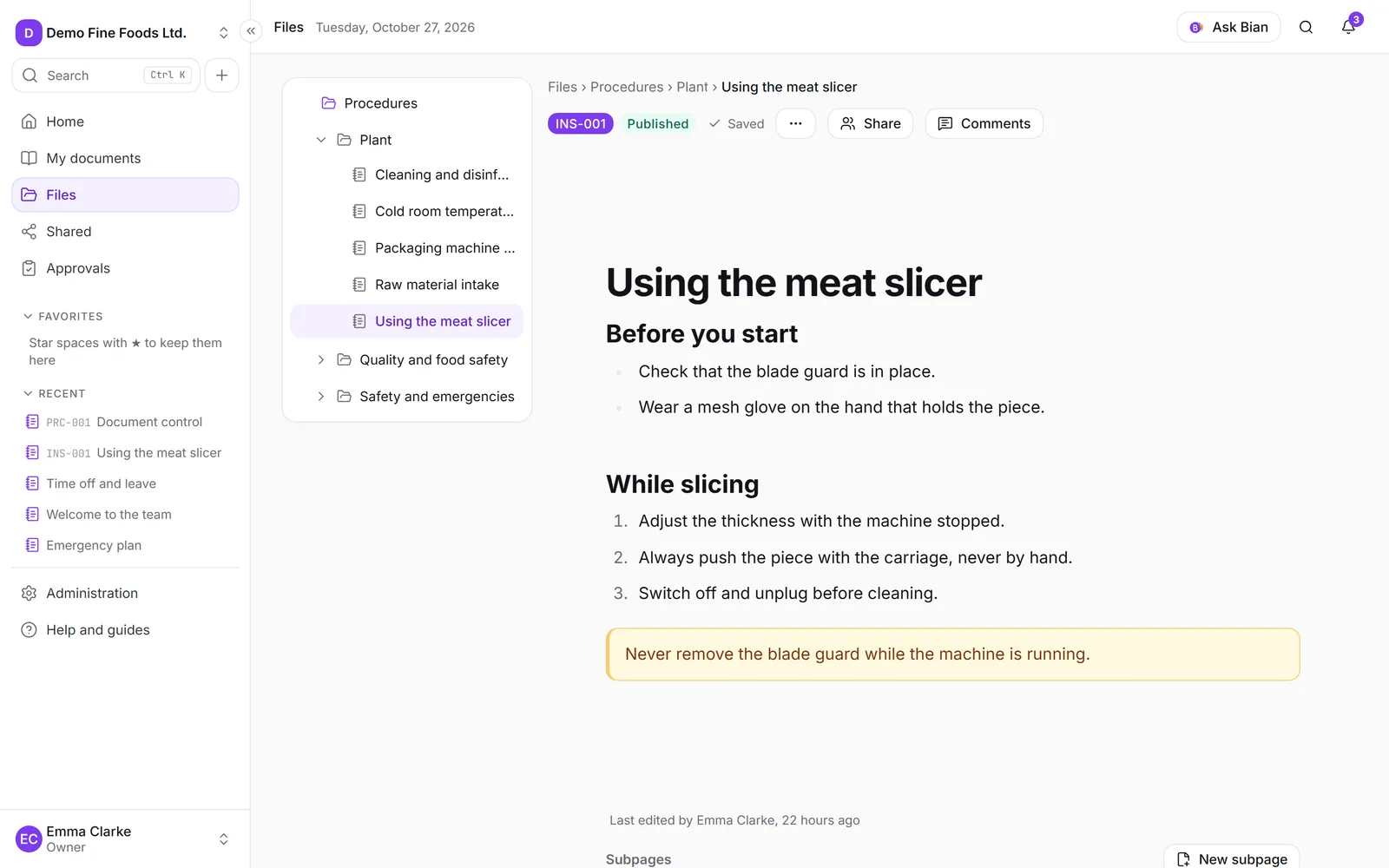
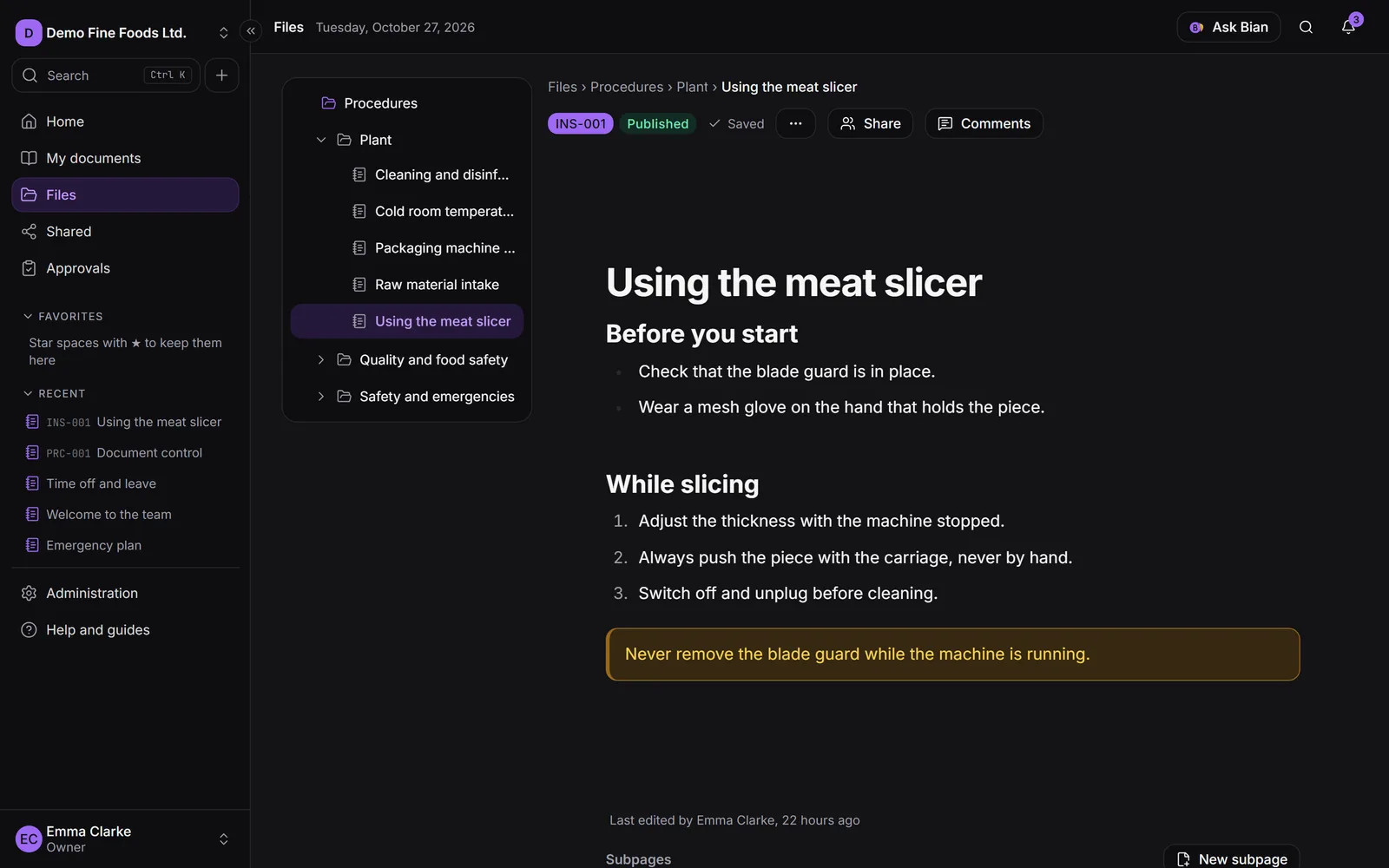
A page is a document you write inside SpiderFolio, Notion-style: procedures, work instructions, minutes or manuals. It lives in a folder of a space, next to your files, and has the same permissions. It can be turned into a controlled document.
Create a page
You need to be able to edit in the folder. There are three ways:
- In the space’s explorer, New › New page.
- In the Create menu of the side menu, New page: it creates it in the folder you are viewing or, if you are not inside a space, asks which one.
- In search (Ctrl+K), the New page action.
The New page dialog opens: start blank or with a ready-made template (procedure, work instruction, meeting minutes or welcome manual). Templates are guidance models: replace the gray text and adapt them to your company. From the same dialog you can choose Draft with Bian to have it put together a first draft from your notes (see Bian).
Writing
- Type / to open the block menu: Text, Heading 1, Heading 2, Heading 3, Bulleted list, Numbered list, Checklist, Table, callouts (Info callout, Warning callout, Danger callout, Done callout), Quote, Code, Image, Divider, Toggle, Two columns and Embed file. Keep typing to filter and press Enter.
- When you select text, the formatting bar appears: Bold, Italic, Underline, Strikethrough, Code, Link and Comment.
- To the left of each block, + adds a block below and the handle lets you drag it to move it.
- In tables you can add and delete rows and columns; in callouts, change the type.
- Above the title you can Add icon and Add cover.
- Headings build the On this page table of contents automatically. At the bottom, Subpages lists the child pages and lets you create a New subpage.
Images and files
- Image uploads an image; you can also paste it or drag it onto the page. Add alt text describing it for people who can’t see it.
- Embed file shows a PDF or an image from the space inside the page. People who can’t see that file don’t see it.
Links and mentions
- Type [[ and the name of a page or file to link to it. Only the ones you can see appear; if someone opens a link to something they can’t see, it shows as Document you can’t access.
- Type @ and a person’s name to mention them: they get a notification. Mentioning doesn’t give access: if the person can’t see the page, SpiderFolio tells you and, if you manage the page, offers Give access right there.
- For a link to a website, select the text and use Link.
Comments
Click Comments at the top right to open the panel. You need at least the Comment level.
- To comment on the whole page, type in the panel and click Comment.
- To comment on a passage, select it and click Comment in the formatting bar. The text stays highlighted.
- Each comment opens a thread where people can Reply…. When it’s settled, click Resolve; if needed, Reopen.
The panel filters by Open, Resolved and Mine. If the commented text is deleted, the thread remains and says so.
Autosave
There’s no save button: every change is saved automatically within a few seconds. At the top you see the status: Unsaved…, Saving…, Saved. If you lose your connection, you’ll see Offline: it will be saved when you’re back, and it saves once you’re online again.
If someone else saved changes to the same page while you were typing, SpiderFolio stops saving yours so it doesn’t overwrite their work, and lets you choose: See the latest (your unsaved changes are discarded), Copy my text or Save mine on top.
The bottom of the page shows who made the last edit and when.
More actions
The More actions button (the three dots) has:
- Duplicate: a copy of the page in the same folder.
- Document control: turn it into a controlled document or see its status.
- Generate QR code: see QR codes.
- Summarize with Bian.
- Print / Export to PDF: uses the browser’s print dialog.
Whoever manages the page also sees the Share button (see Sharing). If you can only read it, you’ll see the notice “You can only read this page.”