 SpiderFolio
For users
Sharing
Give departments or people access to an item or a whole space, with a level and an expiry date, and see who gets in and why.
What it’s for
Sharing gives someone who doesn’t have access to a folder, page, file or entire space a way in, or raises the level of someone who already gets in. Every resource explains who has access and why, so there’s no guesswork.
Where to find it
You need the Manage level on whatever you want to share (heads and deputies have it in their area’s spaces; the owner and admins, everywhere).
- A folder, page or file: in its actions menu in the explorer, Share. On an open page, the Share button at the top right.
- A space: in the space’s actions, Members. It’s the same dialog.
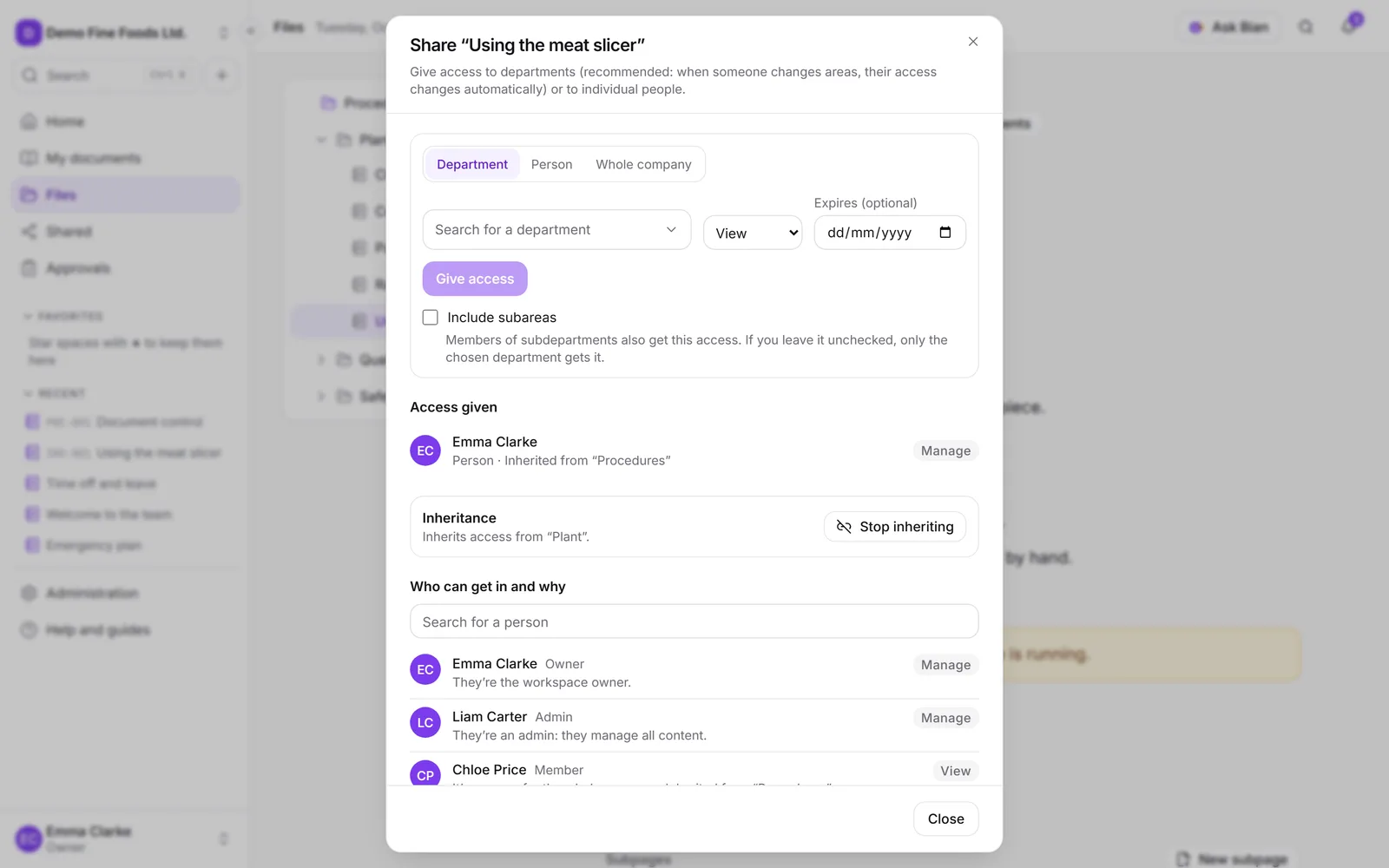
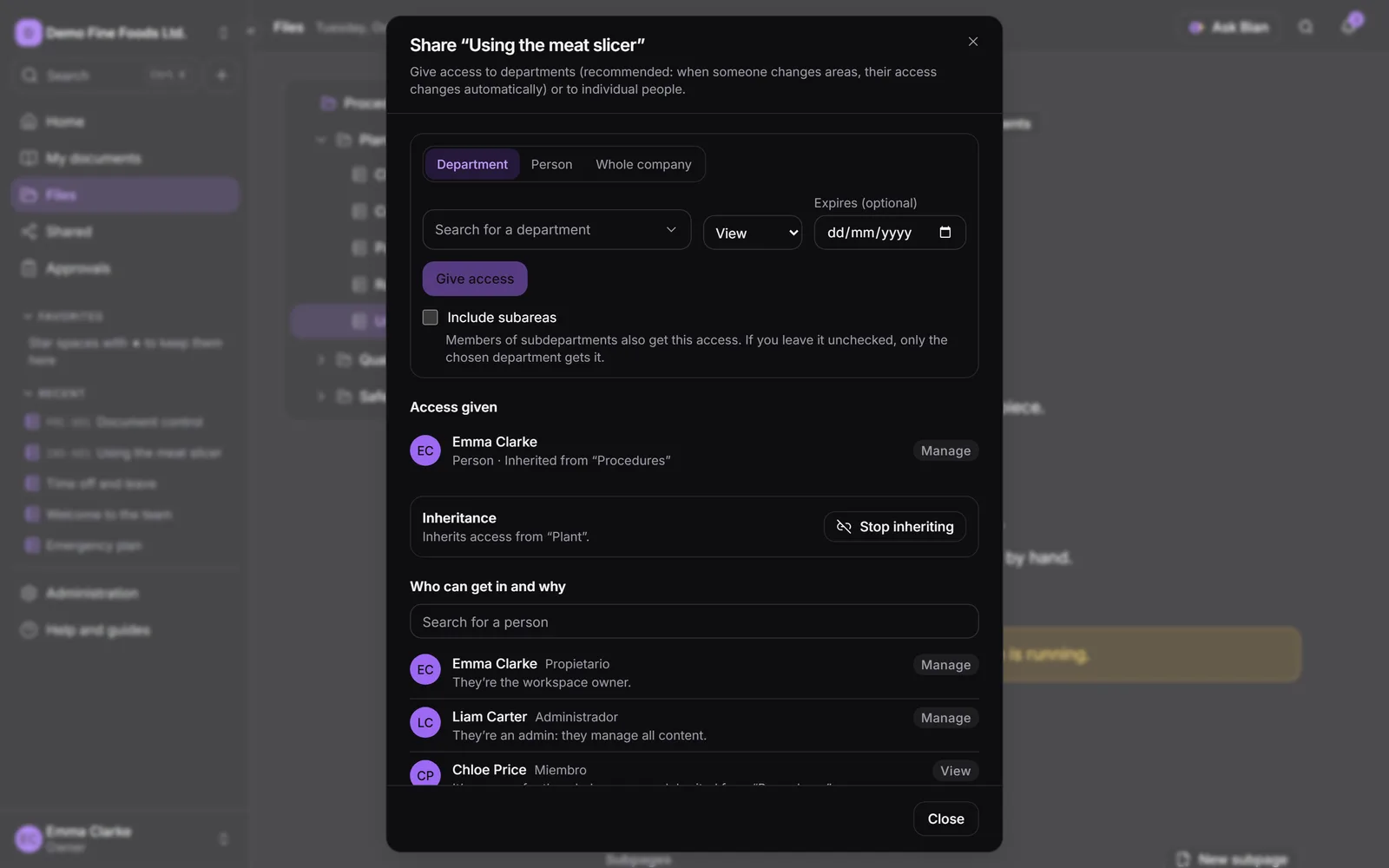
Give access
- Under Give access, choose who: Department, Person or Whole company.
- Search for and choose the department or person.
- Choose the Level:
- View: view and download.
- Comment: also comment on pages.
- Edit: also create, edit, upload versions and move.
- Manage: also share, delete and manage the controlled document.
- Optionally, set a date in Expires (optional). The access ends on its own that day.
- For a department, check Include subareas if subdepartments should get in too.
- Click Give access. The person gets a notification by email and in the bell.
It’s better to give access to departments than to individual people: when someone changes areas, their access changes automatically. Whole company covers all active members, excluding external guests.
Readers and external guests can’t edit or manage: the most they get is Comment.
Access given
The Access given list shows each access with its level, its expiry (“Expires …”), whether it includes subareas and who gave it. You can change the level from the row or remove the access. Access that comes from a parent folder shows as “Inherited from “…”” and is changed there.
Inheritance
By default, an item inherits the access of the folder that contains it, and that folder inherits from the space. Under Inheritance you can:
- Stop inheriting: only access given here applies (plus the owner and admins). Anyone who currently gets in through the parent item loses access. If you were going to lose access too, you keep direct Manage access.
- Restore inheritance: access given on the parent applies again, in addition to access given here.
Who can get in and why
The Who can get in and why section lists each person with access, their level and the reason: “They’re head of Quality.”, “Their department Production has access.”, “They were given direct access.”, “They’re an admin: they manage all content.”, with the expiry and inheritance where relevant. Use the search box to find someone.
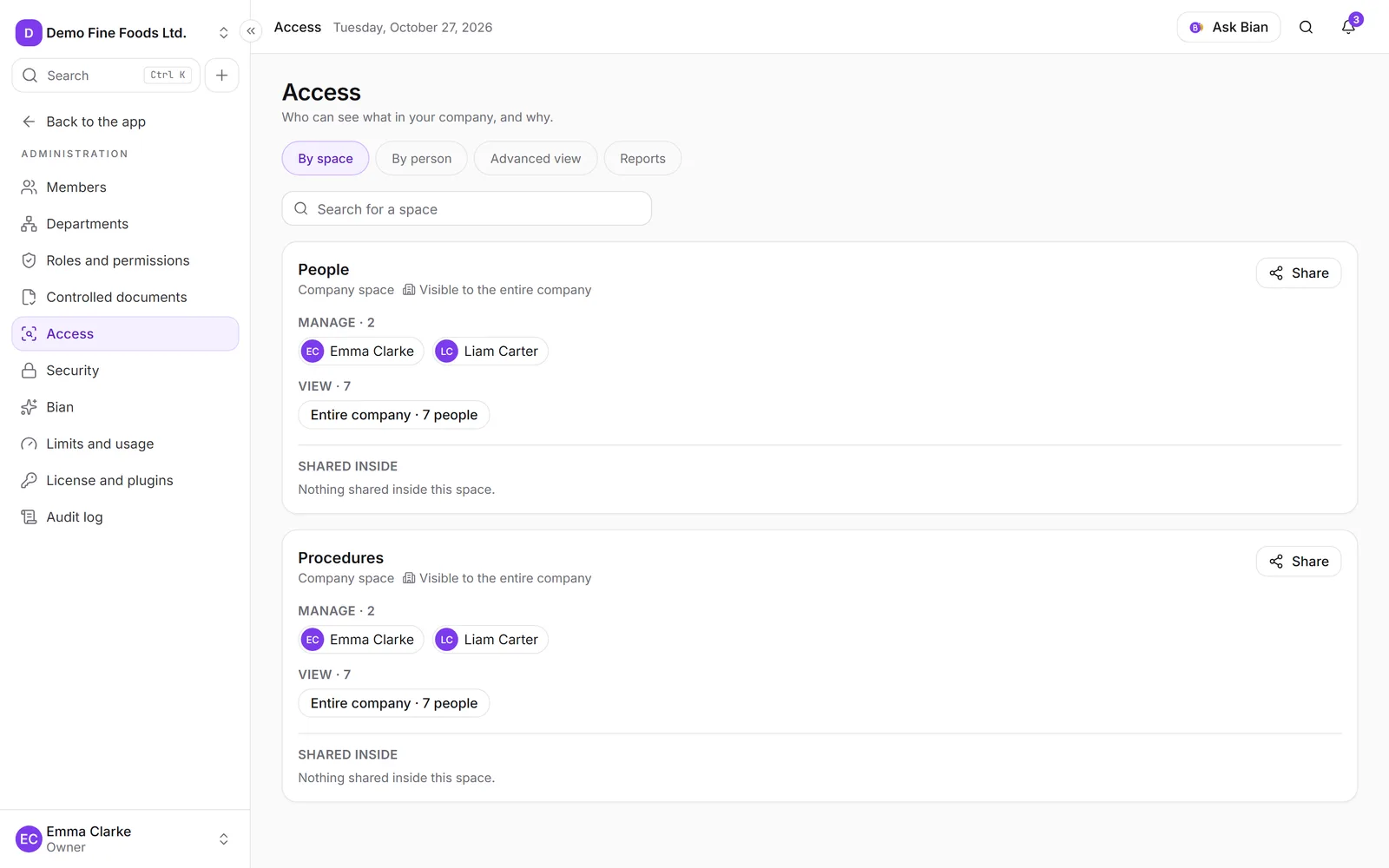
For the full picture across the company (by space or by person), people with permission to audit access use Administration › Access.
Expiry dates and shared items
- Shared items are marked in the explorer (“Shared with …”, with their expiry).
- Before an access expires, the person gets a notification (“Your access to “…” expires tomorrow”).
- Shared › By me shows everything you shared (and, if you lead an area, what your team shared). From there you can Extend 1 week, Change expiry or Remove access.
- Shared › With me shows what was shared with you.