 SpiderFolio
For users
Search
Quick search with Ctrl+K and full-text search inside pages, PDFs and Word files, limited to what you can see.
Two kinds of search
- Quick search (Ctrl+K): finds a document, folder, space or person by name or code, and offers shortcuts.
- Full-text search: looks for a word or phrase inside the content of pages, PDFs and Word files.
Both show only what you have permission to view. What you can’t see doesn’t appear, not even its name.
Quick search
Click Search in the top bar, or press Ctrl+K (⌘K on a Mac), from any screen.
- Type part of the name, or the code of a controlled document (for example, PRC-004).
- Results are grouped into Documents, Folders, Spaces and People. Before you type anything, you’ll see your Recent items.
- Move with ↑ ↓ and press Enter to open.
Under Actions you also have New page, Go to … (the app’s sections) and Ask Bian, which passes what you typed to Bian.
To search inside the content, choose Search for “…” in content.
Full-text search
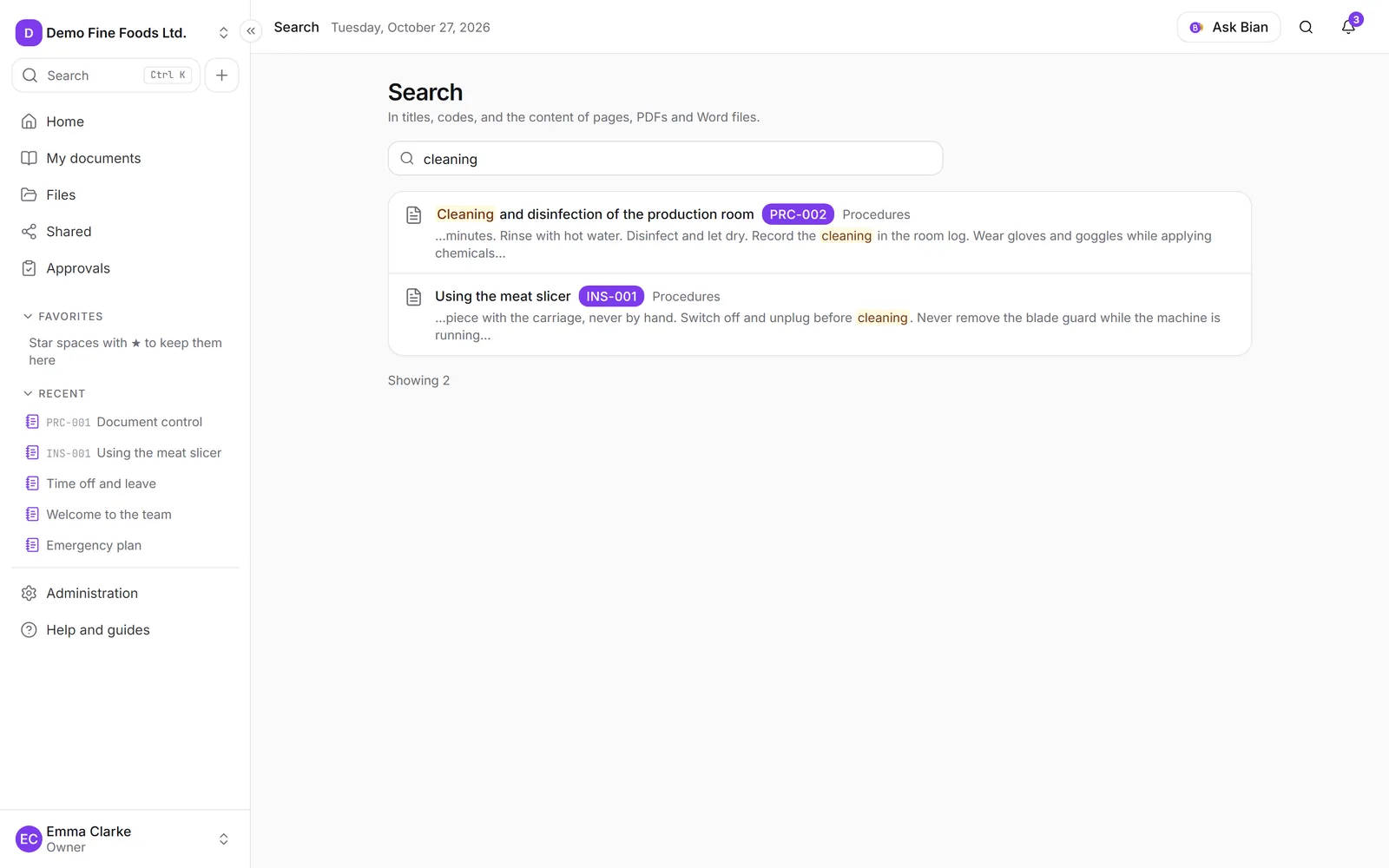
This opens the Search screen, which looks in titles, codes and the content of pages, PDFs and Word documents (DOCX).

- Type at least two letters.
- Accents don’t matter: “café” and “cafe” find the same results.
- Use quotes for an exact phrase:
"hand washing". - Use a hyphen to exclude a word:
cleaning -weekly.
Each result shows the name, the space it’s in and a passage with the word highlighted. They’re sorted by relevance, and more load as you reach the end (“Showing … (there are more)”).
Good to know
- The text of a newly uploaded PDF or Word file is extracted in the background: it can take a moment to show up in search.
- A scanned PDF (an image, with no text) is found by its name, but not by its content.
- Expired access and stopped inheritance are always respected: if you can no longer see something, it no longer appears.
- If you can’t find anything, try another word, or ask Bian in your own words.