 SpiderFolio
For users
Files
Spaces, folders and files: who has access and why, uploading, moving, downloading as ZIP, versions and trash.
Spaces
All content lives in spaces: each one is the root of a tree of folders, pages and files. You’ll find them under Files in the side menu.
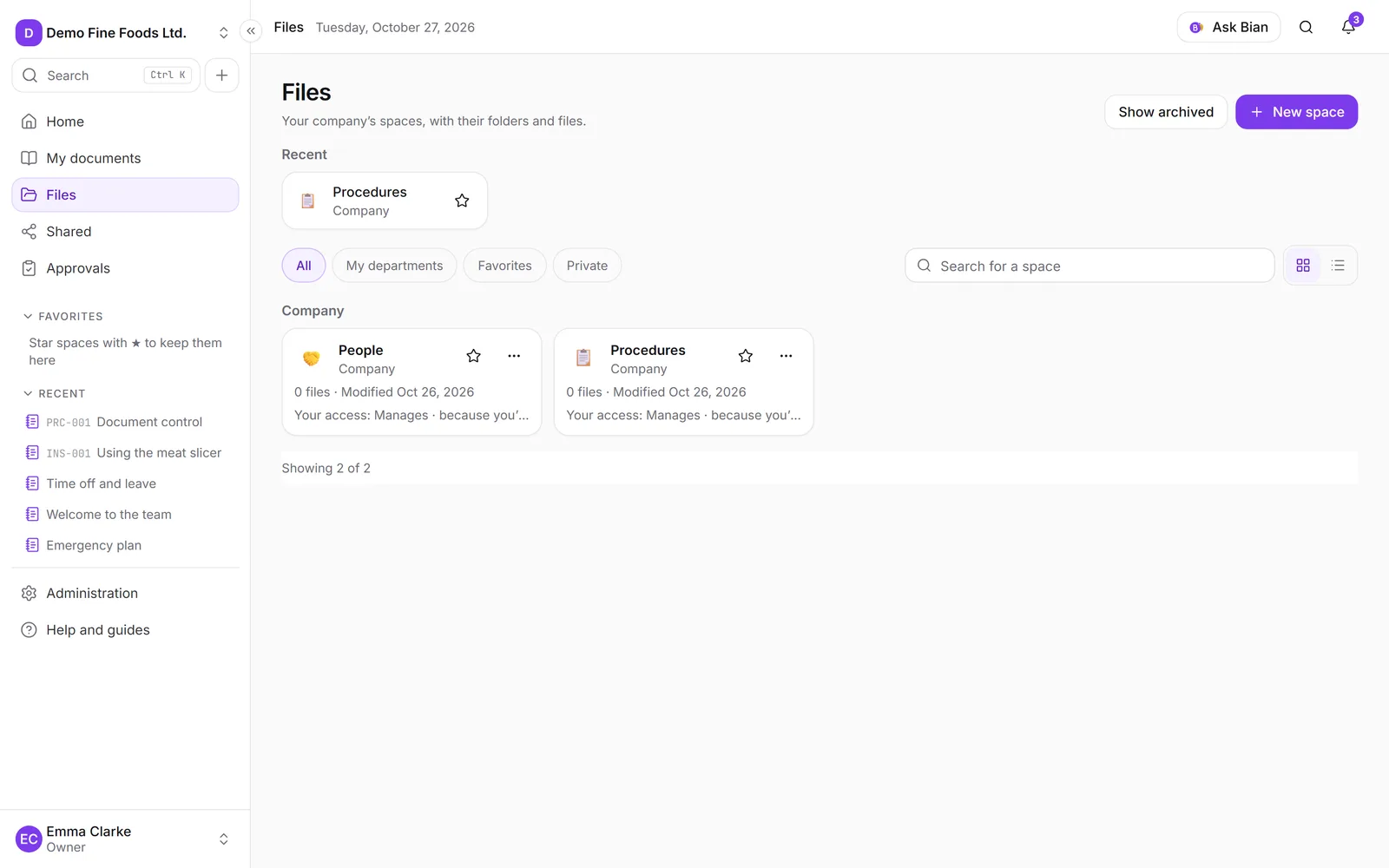
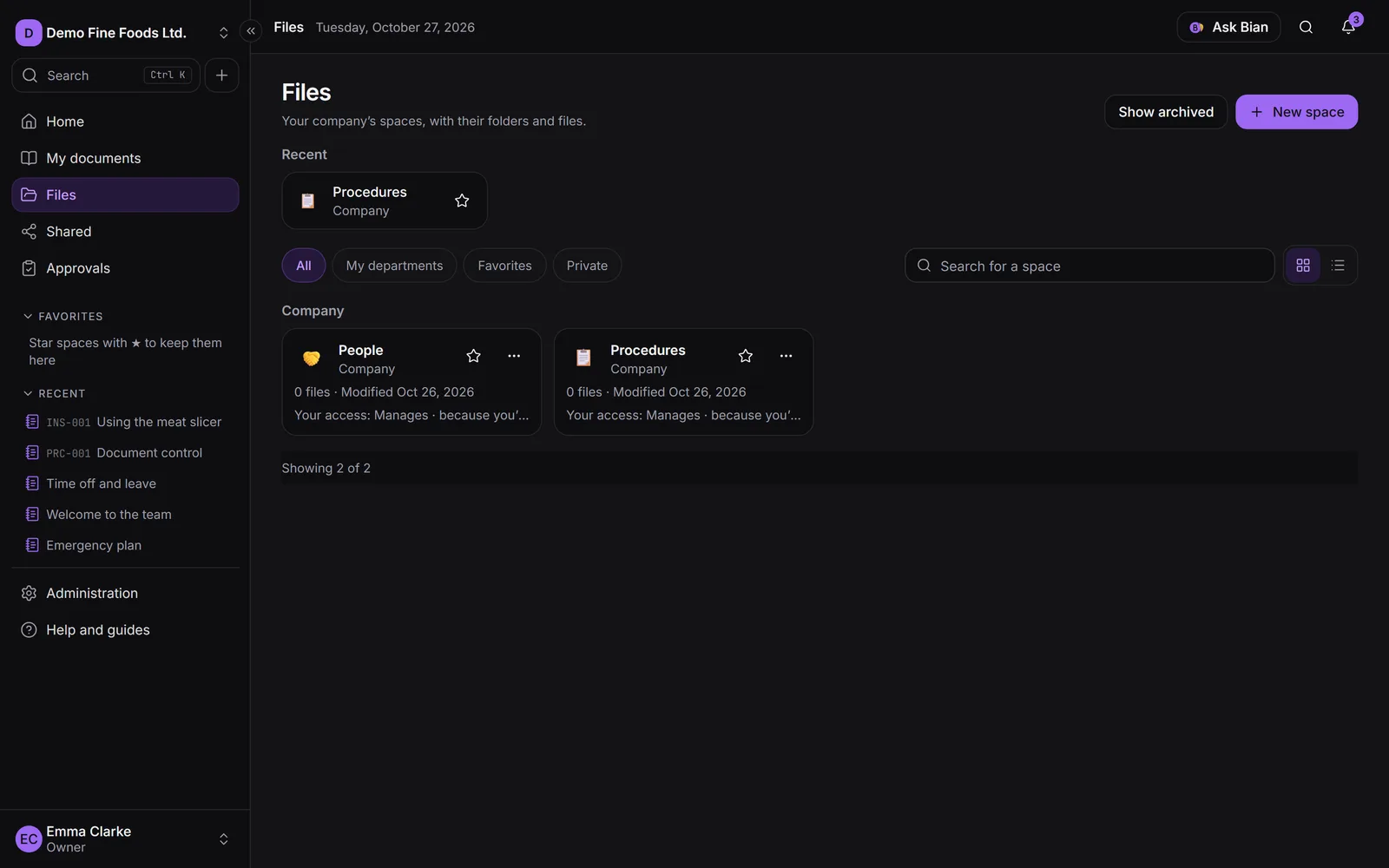
- A space can belong to the company or to a department. In a department’s space, its head and deputies manage it, and the department’s people get in with the level you choose: Can edit or Can only view.
- The list has Favorites (the star), Recent items, filters (All, My departments, Favorites, Private), sorting by name, department or date, and a Cards or List view. More items load as you reach the end.
- Each space tells you why you have access: “Head of Finance”, “Deputy of Finance (parent area)”, “Member of Accounting · includes sub-areas”, “Admin”, “Access given to you”.
- New space (if you have permission) asks for a name, description, emoji, color, department and visibility.
Who sees each space
There are three visibility levels:
- Normal: the whole team sees it (read-only, unless someone has more access).
- Private: only people who were given access, the department’s people and admins can see it. It’s marked with a padlock.
- Confidential: on top of that, admins can’t get in on their own. Only the workspace owner, the department’s head and deputy (and those of parent areas), its members and anyone added explicitly. It’s marked with another padlock and the word “Confidential”.
In a department space, Include subareas (off by default) extends members’ access to the sub-departments. Heads and deputies of parent departments can always manage the spaces of their sub-areas.
Members, in the space’s actions, gives access to departments (recommended: when someone changes teams, their access follows) or to people, with a level (View, Comment, Edit, Manage) and an optional expiry date. Readers and guests never go beyond Comment. It works just like sharing an item: see Sharing.
Folders and files
When you open a space you see the explorer: the folder tree on one side and the folder’s contents on the other, with the path (breadcrumbs) at the top and Your access with its reason.
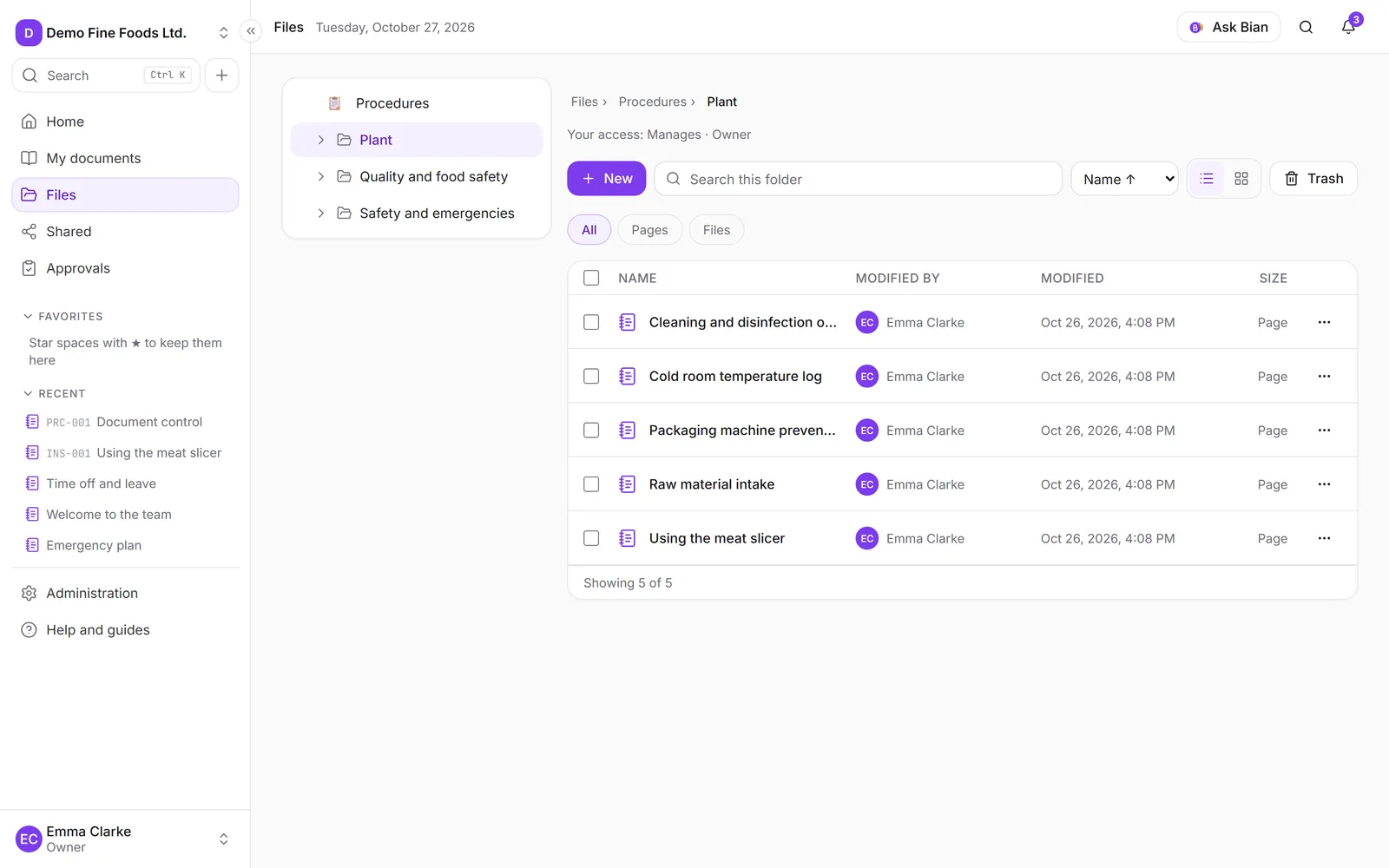
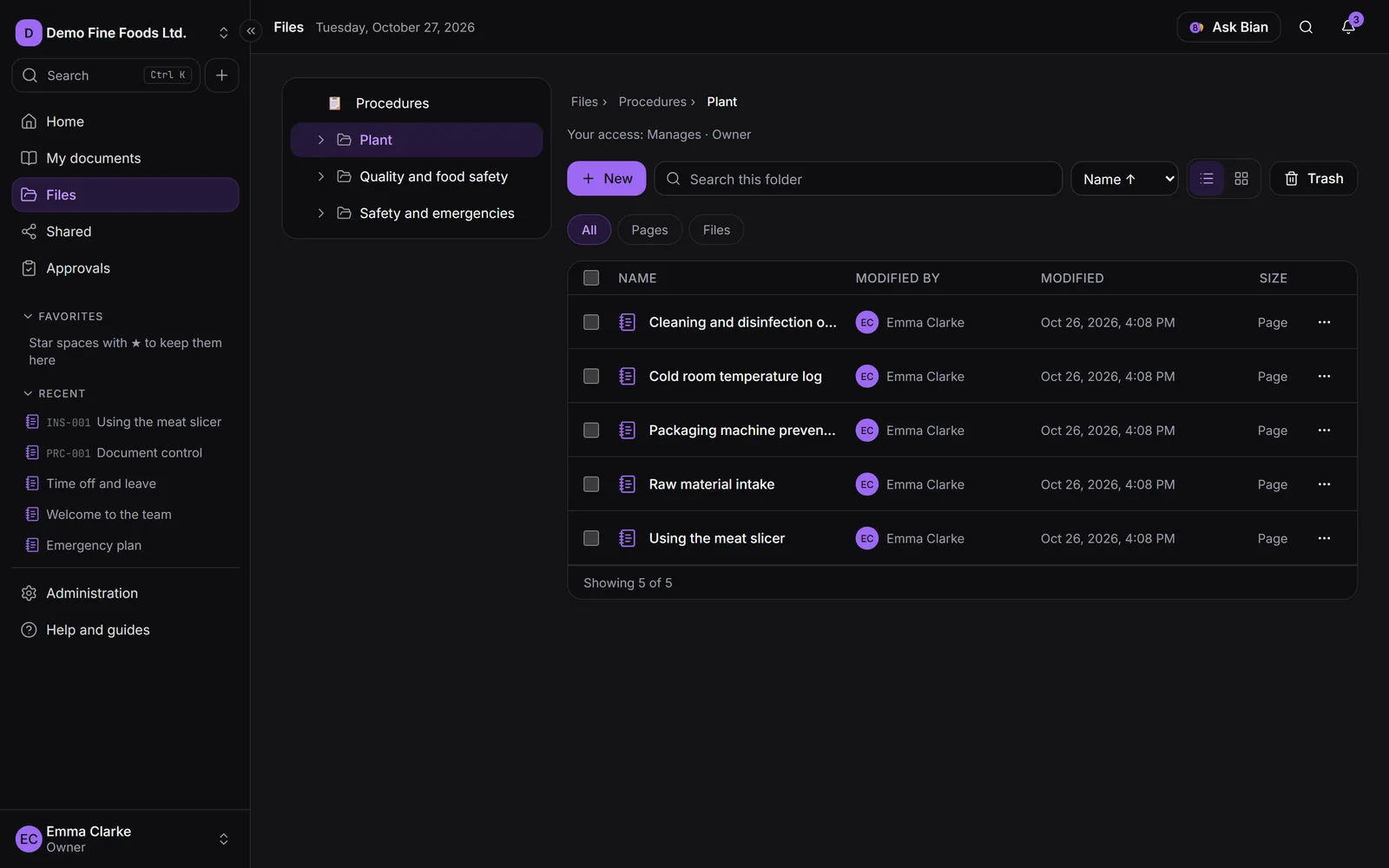
- New creates a New folder or a New page (see Pages), and lets you Upload files, Upload folder or Import ZIP. You can also drag files and folders from your computer. Large files are uploaded in parts and resume if interrupted.
- The file’s real type is checked, not just its extension. Executables, HTML and SVG are not allowed.
- If a file with that name already exists, you choose Replace (new version), Keep both or Skip.
- View opens a preview without downloading. Download saves the file.
- The list filters by type (All, Pages, Files), supports multiple selection, sorting and search, and shows who modified each item and the total size of each folder.
Versions
Each file keeps its versions. In the file’s menu, Versions shows the history: you can Upload a new version, download any of them, or click Restore this one to make an earlier one current again. If the file is a controlled document, its versions follow the rules in Controlled documents.
Import a ZIP
Import ZIP (or Import ZIP contents in the menu of a ZIP already uploaded) extracts it keeping its folders, optionally into a new folder. If the ZIP contains a single folder at the root, its contents go straight in, without repeating a level. Anything that can’t be imported is skipped and explained at the end. Afterwards you can Delete the original ZIP to free up space.
Move
Moving works like Google Drive, in any of these ways:
- Move, in the item’s menu or the selection bar: a dialog with the folder tree, where you can change spaces and create a new folder. Finish with Move here.
- Drag and drop onto a folder in the list, the tree or the path.
- Cut and paste: Ctrl+X cuts the selection and Ctrl+V pastes it into the folder you’re viewing.
You need to be able to edit both the source and the destination. A folder can’t be moved into itself. If an item with that name already exists, you choose Replace or Keep both. When it’s done you can Undo or Go to folder.
Download as ZIP
Select files and folders and click Download ZIP (or choose it in a folder’s menu).
- Up to 500 MB: the download starts right away. The link is single-use and lasts a few minutes; your permissions are checked again when it’s used.
- Over 500 MB: it’s prepared in the background and you get an email with a temporary link (7 days). It doesn’t count toward your storage.
- Only what you can see is included.
Shared
Shared, in the side menu, has two tabs: With me (what was shared with you in spaces where you don’t have full access, with new items marked) and By me (the access you gave, so you can remove it or change its expiry). See Sharing.
Trash
Move to trash sends the item (and, for a folder, everything in it) to the space’s Trash. It’s kept there for 30 days and can be Restored. Delete removes it permanently, with all its versions; after 30 days it’s deleted automatically.