 SpiderFolio
Administration
Members
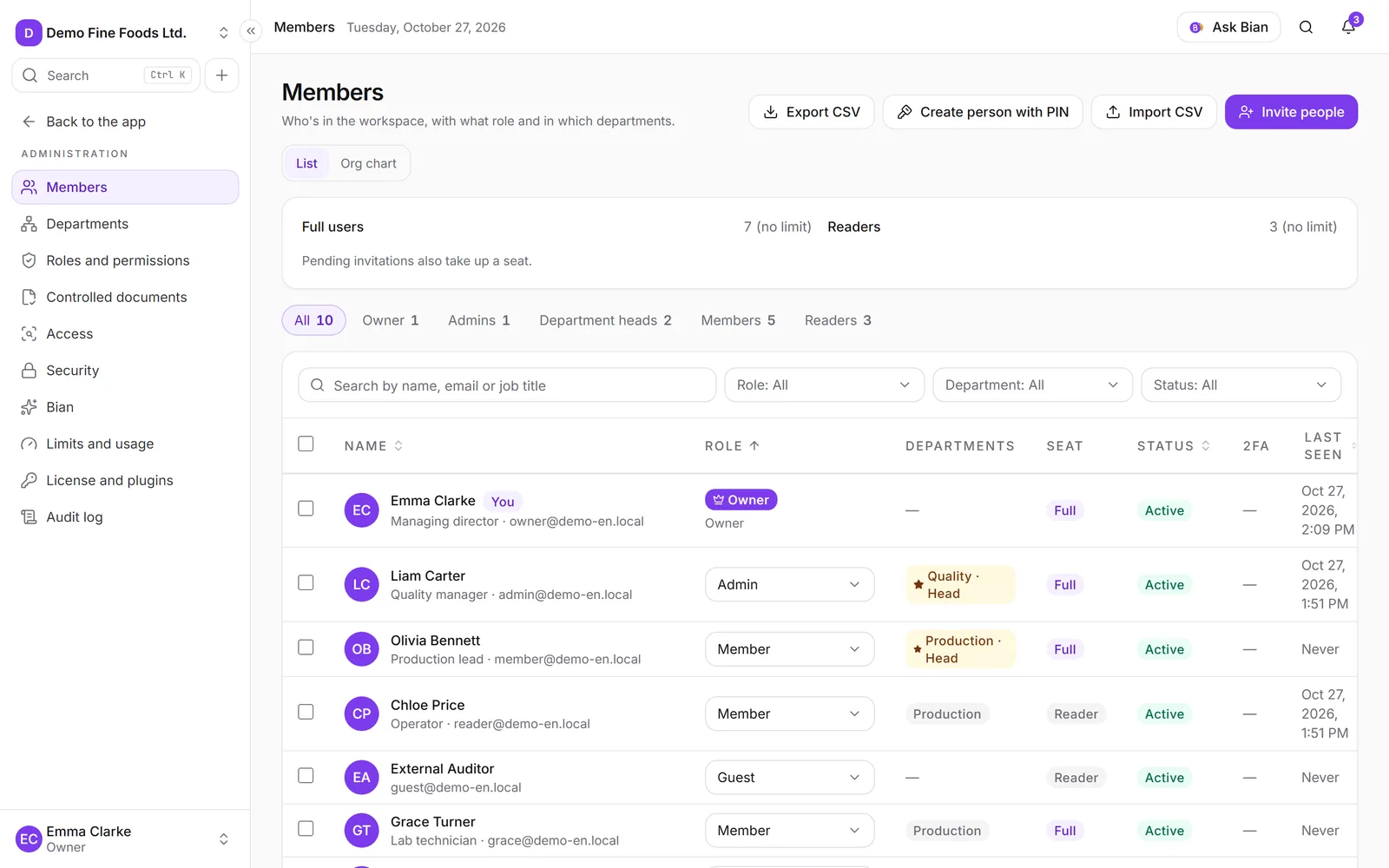
Who is in the company, with which role, seat and departments: search, filter, edit, suspend, remove and export the list.
Members is the list of everyone in your company: their role, whether they take a full or a reader seat, which departments they belong to and when they last signed in. From here you also invite people, change roles, suspend and remove people.
Where to find it
In the side menu, click Administration and then Members. You can also get there from the company menu (top left), Company settings.
You need the View members or Manage members capability. If you have neither, the section doesn’t appear.
If you’re the head or deputy of a department, the screen is called My team and shows only the people in the departments you lead and their sub-areas.
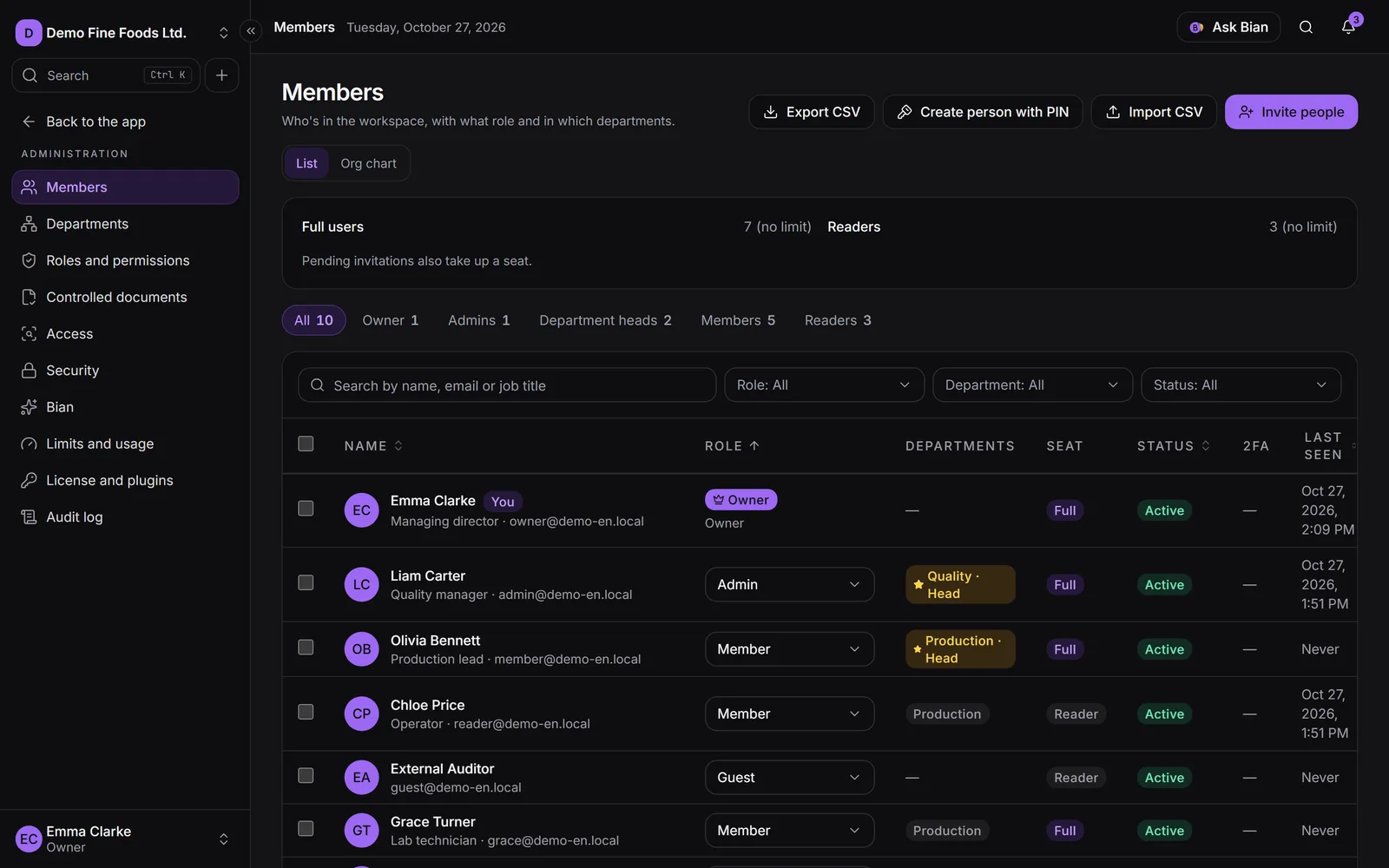
List and Org chart
At the top you choose the view:
- List: the table with everyone (the usual view).
- Org chart: the company as a tree, with the owner at the top and every department and sub-area below. Each area opens to show its head, deputies and members. It has a search box (Search for a person in the org chart) and the Expand all and Collapse all buttons. People who aren’t in any department appear at the end, under No department.
Above the org chart is the Structure review, which flags what’s worth fixing: departments without a head, people without a department, heads with a reader seat and departments with no people. Admins who are also heads show up as For your information: nothing needs fixing.
If you can manage the person, the org chart gives you Make head, Make deputy, Remove position and Move to another department. More in Departments.
Summary and seats
In the List view, at the very top you see the Seats: how many Full users and Readers there are. There’s no limit; pending invitations also take up a seat and suspended people don’t.
- Full users create, edit and administer.
- Readers read and confirm reads. External guests and people who sign in with a PIN are readers too.
Below is the Summary by hierarchy: All, Owner, Admins, Department heads, Members and Readers, with how many people are in each group. Click one to filter the table and click it again to clear the filter.
The table
Each row is a person:
- Name: their name, email (or username, if they sign in with a PIN) and job title. Your own row shows You.
- Role: what they can administer. If you can change it, it’s a selector and saves instantly; it only offers the roles you can give.
- Departments: the ones they belong to.
- Seat: Full or Reader.
- Status: Active or Suspended. If a PIN user got it wrong too many times, you’ll also see PIN locked.
- 2FA: On if they use two-step verification.
- Last seen: the last time they used the company, or Never.
To find someone, type in the search box (Search by name, email or job title) or use the Role (it includes a Department heads option), Department and Status filters. Click a column title to sort. The list loads more people as you reach the end, and the filters stay in the page address, so you can bookmark or share it.
Change a person
Open the row’s menu (the three dots). Each option only appears if you have the capability it needs:
| Option | What it does | Capability |
|---|---|---|
| Edit | Changes Full name, Role, Seat, Job title and Departments. | Manage members |
| Suspend / Reactivate | While suspended, they lose access right away and stop taking up a seat. You can undo it from the notice or reactivate them anytime. | Suspend members |
| Reset PIN | PIN users only: gives them a new PIN, closes their sessions and unlocks them. | Manage PIN sign-in |
| Reset two-step verification | For someone who lost their phone and codes. See Security and two-step verification. | Manage members |
| Sign out their sessions | Closes all their sessions, including in other companies on their account. | Suspend members |
| Remove from workspace | They no longer belong to the company and lose all access. Their account isn’t deleted, but to come back they need a new invitation. | Manage members |
Every sensitive action asks for confirmation.
In Edit, the email can only be changed if the person hasn’t confirmed it yet: they’ll have to confirm the new one and their sessions are closed. If they already confirmed it, they change it themselves from My profile.
Bulk changes
Tick several rows and a bar appears with Change role, Change seat, Departments (Add to departments, Remove from departments or Replace departments), Suspend and Reactivate. To suspend in bulk you type the word “suspend” in the confirmation.
Each person goes through the same rules as if you changed them one by one. If some can’t be changed, at the end we tell you how many were updated and how many weren’t.
Export the list
Click Export CSV, at the top right. You get a file with the people you see according to your current filters and sort order: name, email, job title, role, seat, status, departments, last seen and join date. It opens fine in Excel and the export is recorded in the audit log.
People who sign in with a PIN
For people without an email (for example, shop-floor operators who share a tablet), click Create person with PIN. You need the Manage PIN sign-in capability.
- Enter the Full name and the Username (3 to 32 lowercase letters, numbers, periods, hyphens or underscores).
- Choose the Role (only member roles without admin capabilities) and the Departments.
- If you like, enter the 6-digit PIN. If you leave it empty, we generate one.
- Click Create. The PIN is shown only once: hand it over in person. If it’s lost, use Reset PIN.
At the bottom of the page, the Sign-in with username and PIN card lets you turn this sign-in on or off, sign people out after inactivity or after they confirm a read, and copy the Address for tablets.
Rules worth knowing
- You can only give roles that don’t grant more power than you have.
- An admin doesn’t manage other admins or the owner, and the owner role isn’t assigned from here. On those rows the menu offers no actions.
- Heads and deputies don’t change roles, seats or status: they add and remove people in their areas from Departments.
- There’s always at least one active owner.
- You can’t suspend or remove your own account.
- An external guest is always a Reader and doesn’t join departments. A role with admin capabilities needs a Full seat.