 SpiderFolio
Security
Security and two-step verification
The company's security rules, your two-step verification, recovery codes, trusted devices, sessions and the audit log.
Security in SpiderFolio has three parts:
- The company’s rules, in Administration › Security: who sees whom, what heads can do and how documents are approved.
- Your account’s security, in My profile: two-step verification and your open sessions.
- The audit log: who did what and when.
Requiring two-step verification for the whole company and restricting email domains are part of the Advanced security policies plugin (see below).
The company’s rules
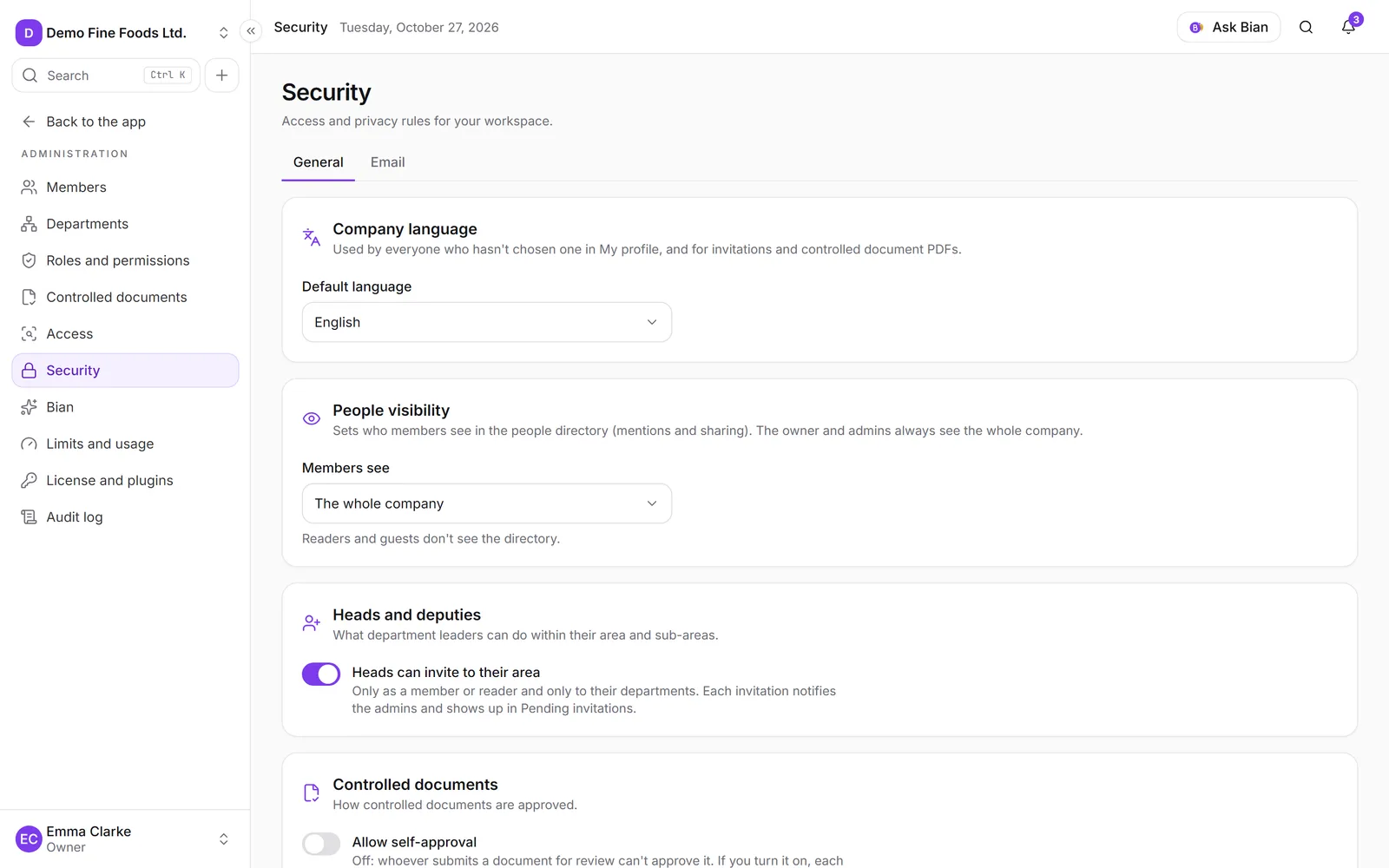
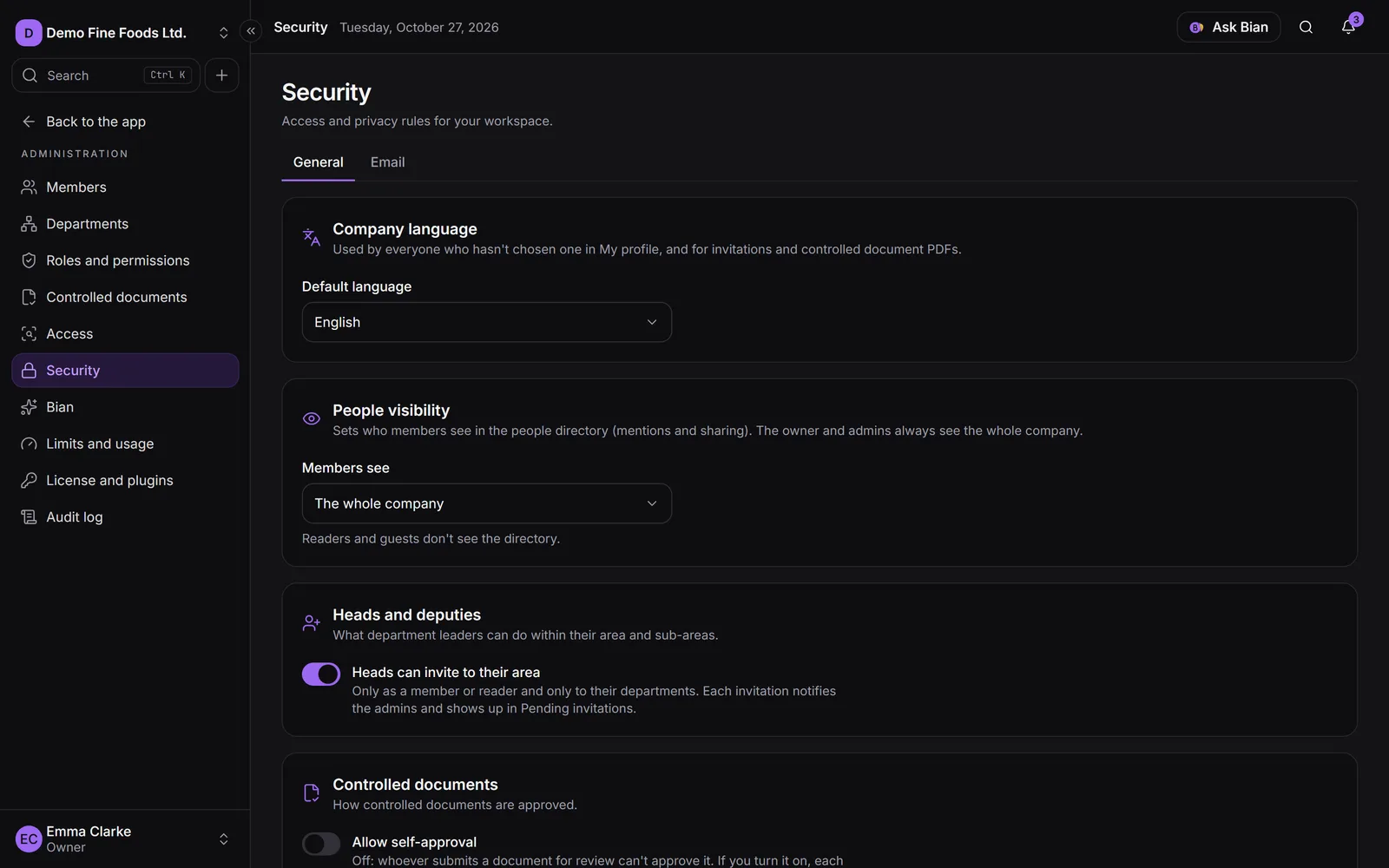
They’re in Administration › Security, General tab, and they’re owner only. (Admins with Manage security only see the Email tab: see SMTP email.) Each change saves instantly and is recorded in the audit log.
Company language
The Default language is used by everyone who hasn’t chosen one in My profile. It’s also used for invitations and controlled document PDFs.
People visibility
Sets who members see in the people directory (when mentioning and sharing). Under Members see you choose:
- The whole company (the default).
- Only their department: they see the people in their departments and the heads of the other areas. They can always share with a department by its name.
The owner, admins and heads always see the whole company. Readers and guests don’t see the directory.
Heads and deputies
Heads can invite to their area (on by default): lets heads and deputies invite people to their departments, only as a member or reader. See Invite people.
Controlled documents
Allow self-approval (off by default). When it’s off, whoever submits a document for review can’t approve it. If you turn it on, each self-approval is recorded in the audit log and the history as “approved by the author”.
Your two-step verification
Besides your password, signing in asks for a 6-digit code from an authenticator app (Google Authenticator, Microsoft Authenticator or another). If someone gets your password, they still can’t get in without your phone.
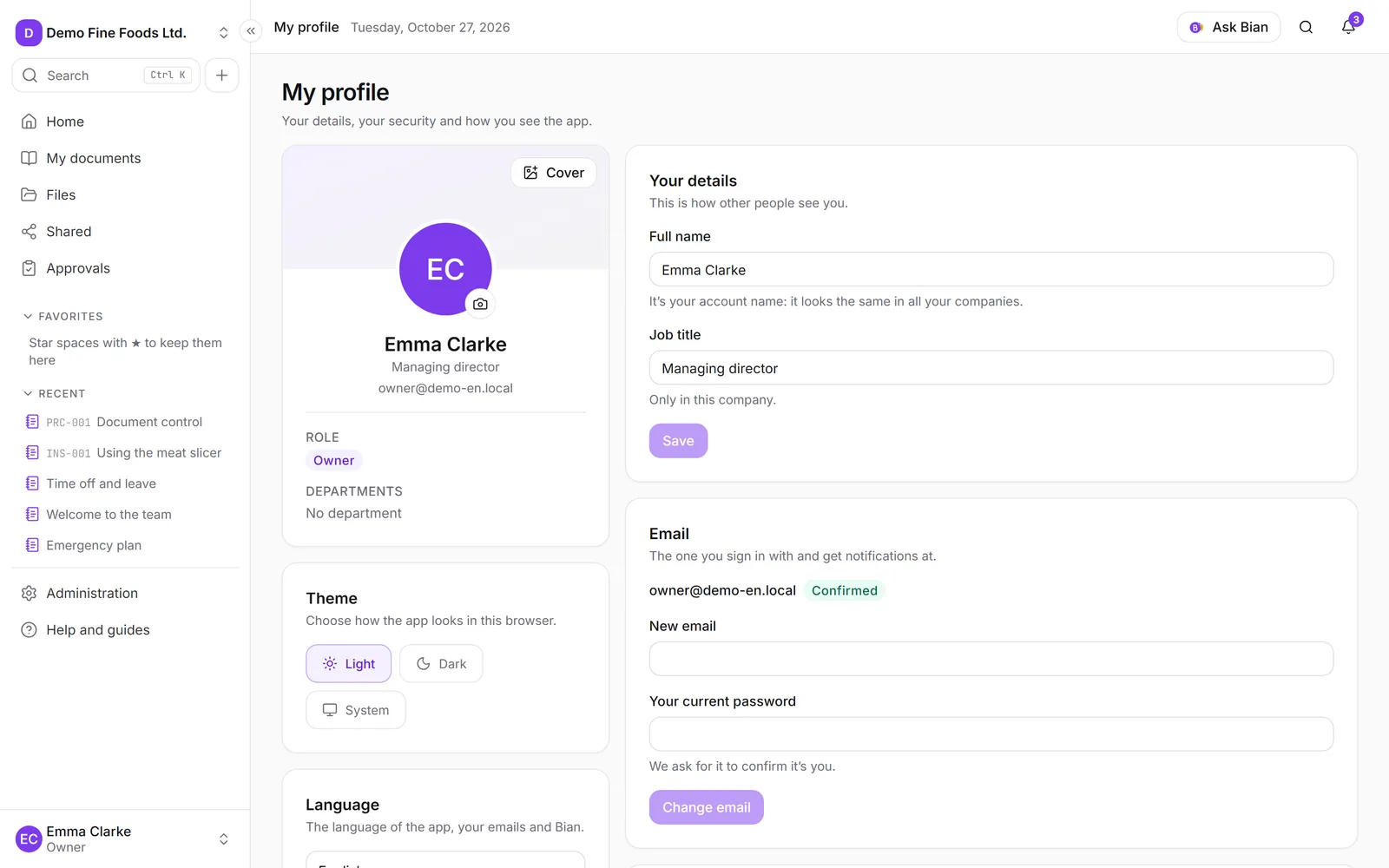
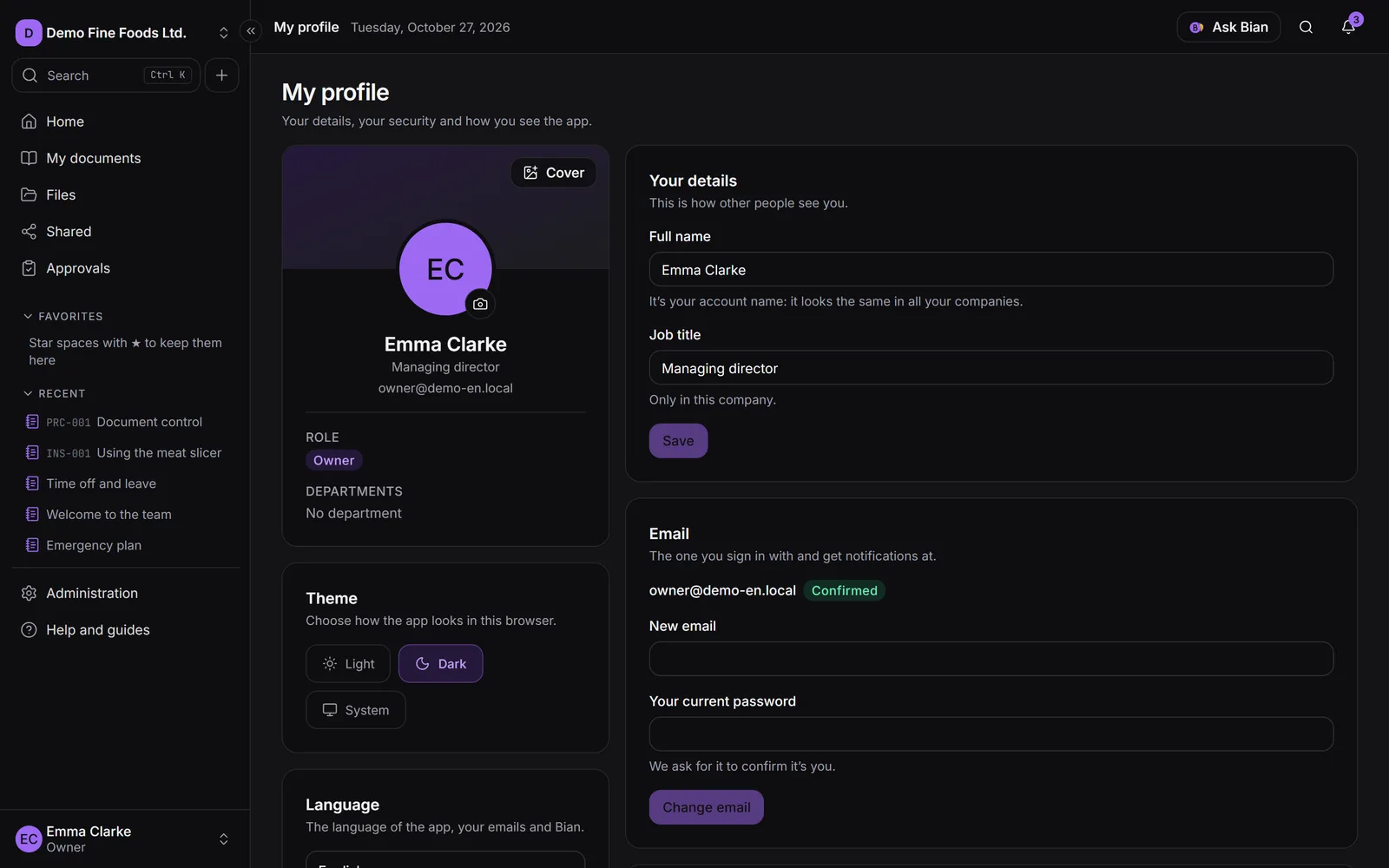
It’s in My profile: click your name at the bottom of the side menu, then My profile. The section is Two-step verification.
Turn it on
- In Two-step verification, click Turn on.
- Scan the QR code with your authenticator app. If you can’t scan it, click Can’t scan it? Show the key and type it into the app.
- Enter the 6-digit code shown in the app and click Turn on.
- Your recovery codes appear: 10 codes for signing in if you lose your phone. Each one works only once. Click Copy or Download, keep them somewhere safe and click I’ve saved them. They’re not shown again.
From then on the section says On, since when, and how many recovery codes you have left. We email you every time it’s turned on or off.
Recovery codes
If you’re running low, or think someone saw them, click Generate new codes. The old ones stop working right away.
Turn it off
Click Turn off and enter your Password and an App code or recovery code. Your account is then protected by your password only, and your recovery codes and trusted devices stop working. If your company requires two-step verification, you’ll have to turn it on again next time you sign in.
People who sign in with a username and PIN (shop-floor tablets) don’t use two-step verification. If you see
“Two-step verification isn’t available yet,” the installation is missing MFA_ENCRYPTION_KEY: let whoever runs
the server know.
When you sign in
After your password, enter the Code from your app and click Verify. If you don’t have your phone, enter one of your recovery codes in the same box.
If you tick Remember this device for 30 days, that browser becomes a trusted device and won’t ask for the code for 30 days. Only use it on your own computer. Trusted devices are cleared when you turn verification off or when an admin resets it.
Actions that ask you to confirm it’s you
For the most sensitive things we ask for the code even though you’re already signed in, if you haven’t confirmed it in the last 10 minutes: generating new codes, turning verification off, changing your email, changing the company policy and resetting someone else’s verification. You’ll see Confirm it’s you: enter the app code (or a recovery code) and click Confirm.
If someone loses their phone
If a person lost their phone and their codes too, an admin can reset their verification:
- In Administration › Members, open the menu on that person’s row.
- Click Reset two-step verification and confirm.
Their linked app, recovery codes and trusted devices are deleted, and their sessions are closed. The person gets an email notice and sets it up again at their next sign-in.
To do this you need Manage members and your own two-step verification turned on (otherwise you’ll see “Turn on your own two-step verification to reset someone else’s”). You can’t reset your own, and an admin can’t reset another admin’s or the owner’s. It’s recorded in the audit log.
Open sessions
In My profile › Open sessions you see where you’re signed in, with the IP, since when and when it was last used. Yours says This session. Click Sign out on any you don’t recognize.
- Changing your password closes your other sessions.
- An admin with Suspend members can Sign out their sessions for anyone from Members; they’re closed in that account’s other companies too.
- Suspending someone removes their access to the company right away.
Require two-step verification for the whole company
This, and the allowed email domains, belong to the Advanced security policies plugin. It has to be installed on the server and included in your license (see License and plugins). With the plugin active, the owner gets a new section in Administration. The plugin’s screens are currently in Spanish only, so the Spanish labels are given in brackets below; the section is called Políticas avanzadas.
Mandatory two-step verification
Under Require two-step verification (Exigir verificación en dos pasos) you choose:
- Don’t require (No exigir).
- Owners and admins (A propietarios y administradores): includes anyone with a role that manages members, security, company settings or roles.
- Everyone except external guests (A todos (salvo invitados externos)).
To require it, you must have it turned on yourself first (otherwise you’d lock yourself out) and confirm your code. Tablet (PIN) accounts are never included.
Anyone who doesn’t have it will see Turn on two-step verification with Turn on now when they sign in, and can’t continue until they set it up.
Allowed email domains
Under Domains (Dominios (uno por línea o separados por coma)) enter your company’s domains, for
example company.com (up to 20), one per line or separated by commas, and click Save domains (Guardar
dominios). From then on, only people with an email on those domains can be invited. It doesn’t apply to
external guests, and people already in the company aren’t affected. Leaving it empty allows any domain.
Single sign-on (SSO) with Microsoft 365 or Google Workspace is coming later.
If the license expires, these policies stop applying and are kept for when you load it again; anyone who already had verification turned on keeps using it.
The audit log
In Administration › Audit log you see who did what and when in your company: sign-ins and failed attempts, changes to members, roles and departments, security changes, verification resets, the email sender, limits, the license and what happens to content. Events can’t be changed.
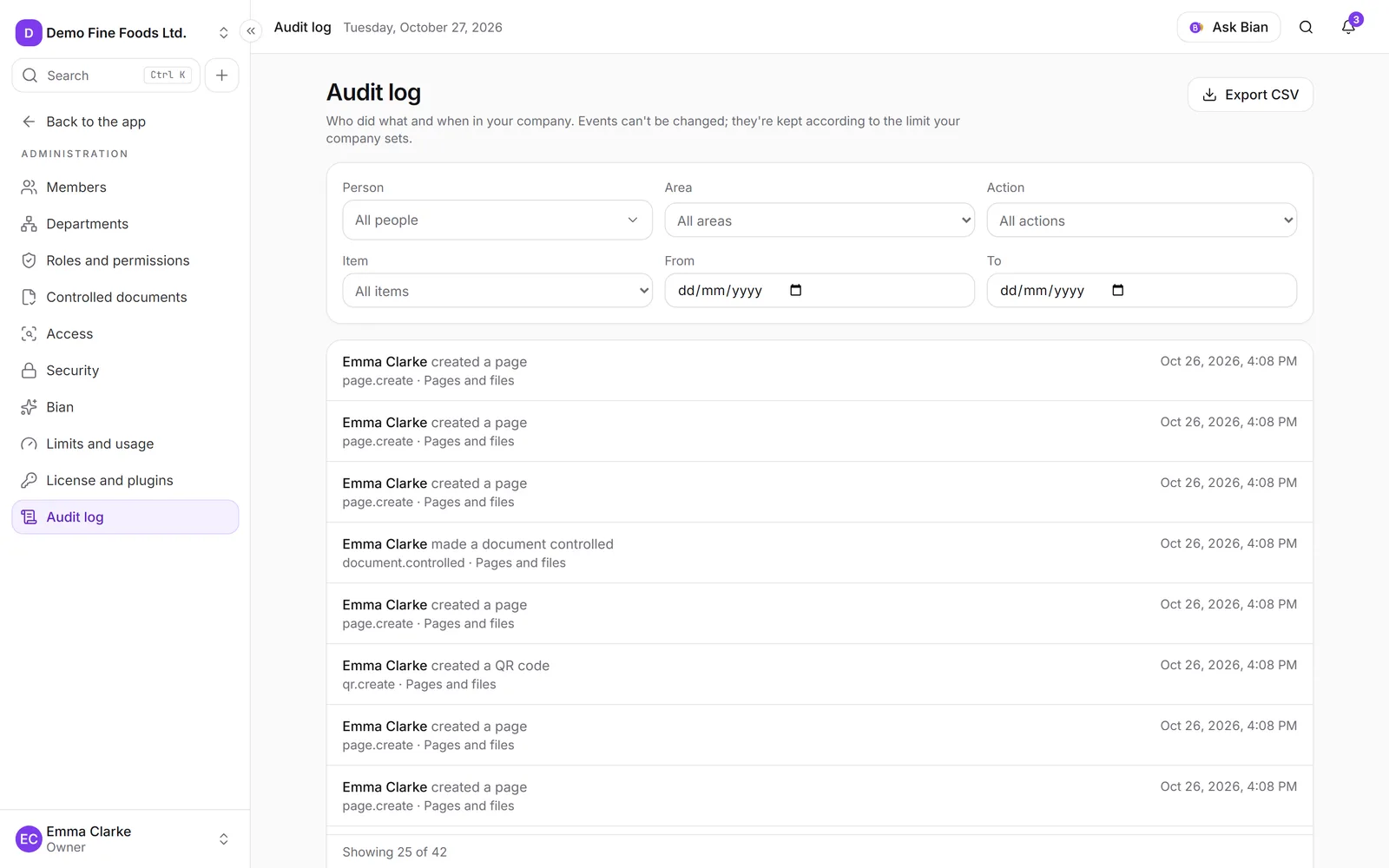
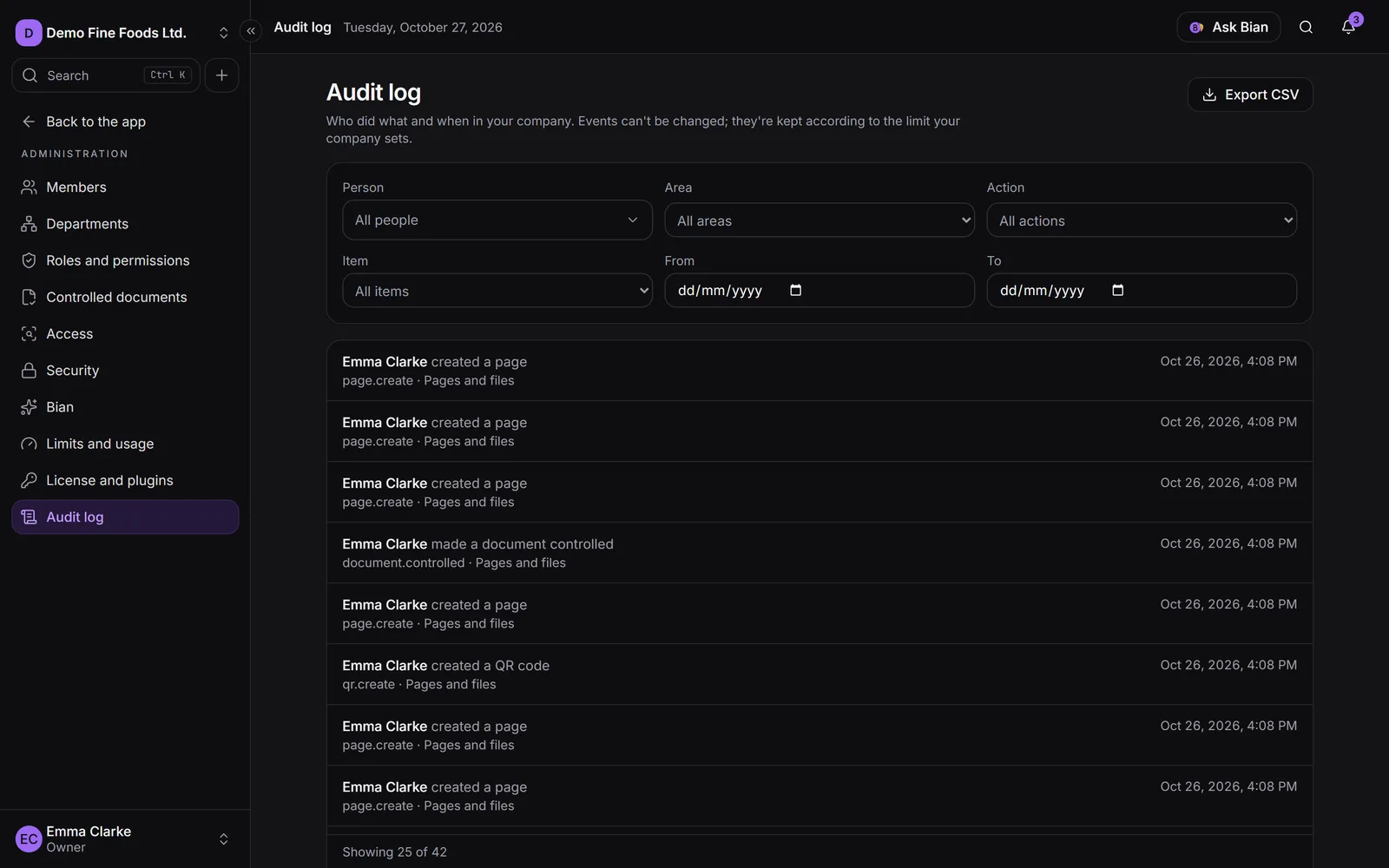
- You need View the audit log; to download it, Export the audit log.
- Filter by Person, Area, Action, Item and dates (From, To). Clear filters brings back the full list.
- Click an event to see the Event details: when, who, the action, the item, the IP address, the Device and the event data.
- Export CSV downloads the log with the applied filters. The export is recorded too.
How long it’s kept depends on Keep the audit log for in Limits and usage: with no limit, everything is kept.