SpiderFolio
For users
Controlled documents
Turn a page or a file into a controlled document: code, a single current version, statuses, version comparison and controlled PDF.
What they’re for
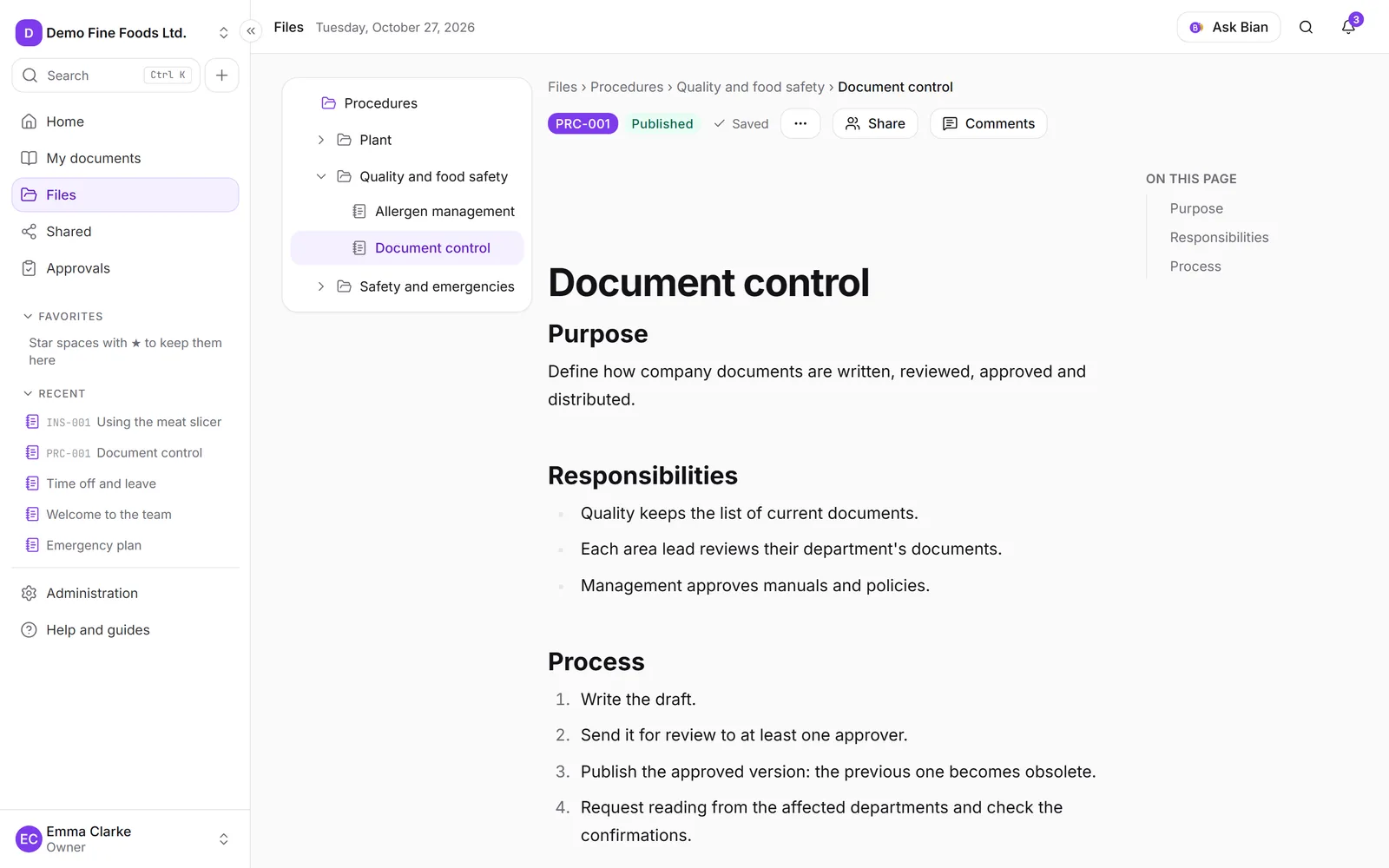
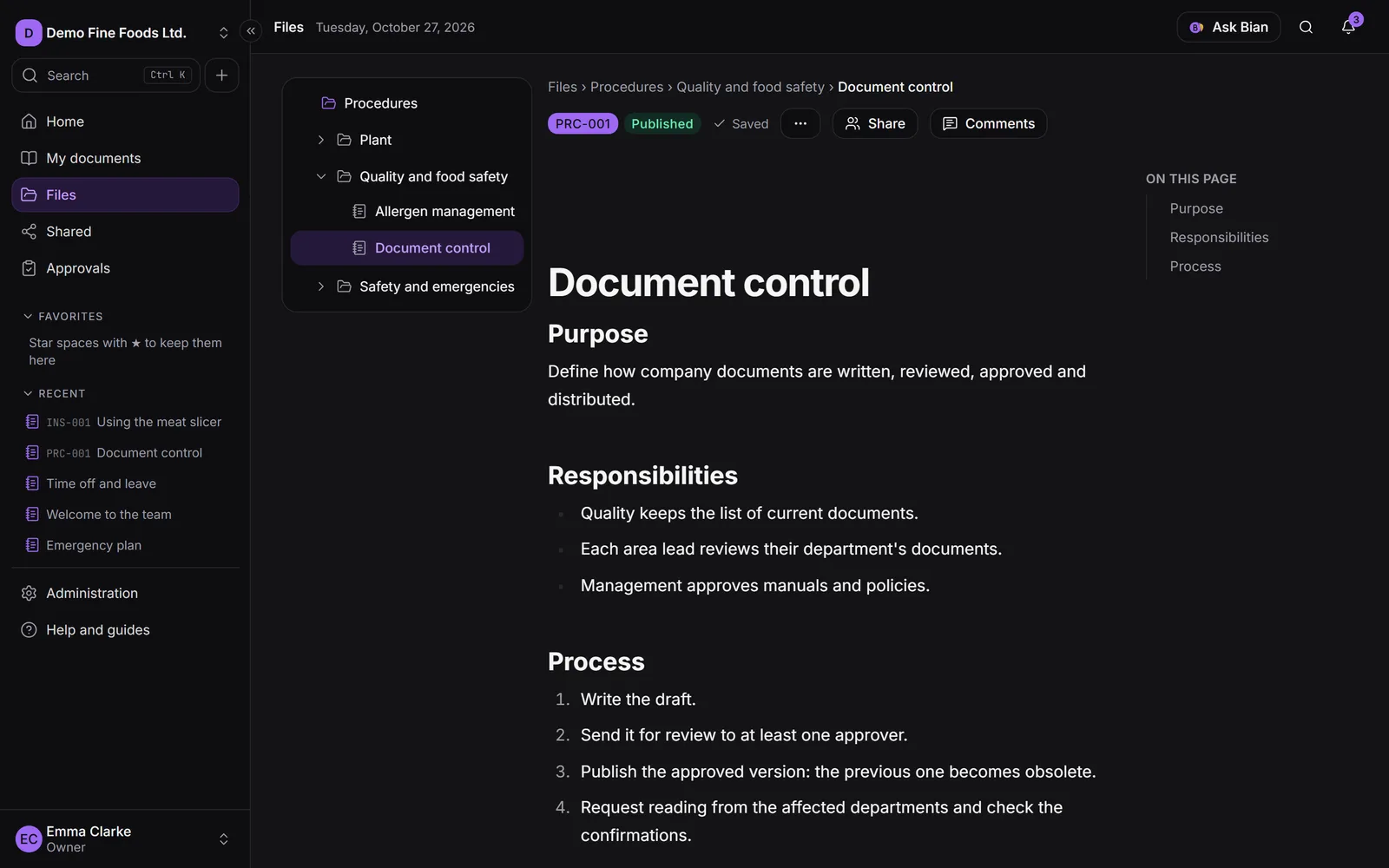
A controlled document is a page or a file with a code (for example, PRC-004), versions, approval and a single current version. It’s what quality standards ask for: everyone reads the approved version, changes go through review and there’s a record of who did what.
Convert a document
You need the Manage level on the document. Folders can’t be converted.
- Open Document control: on a page, from More actions (the three dots); on a file, from its menu in the explorer.
- Choose the Document type:
- MAN (Manual): describes the whole system.
- POL (Policy): commitments and general rules.
- PRC (Procedure): what is done, by whom and in what order.
- INS (Work instruction): how to do a task step by step.
- FOR (Form): template that is filled in as a record.
- Choose the Responsible department. If you don’t choose one, the space’s department is used. It approves the document by default.
- The dialog shows the code that will be assigned. Click Convert to controlled document.
The current version becomes draft 1. To make it current, send it for review (see Approvals).
Codes
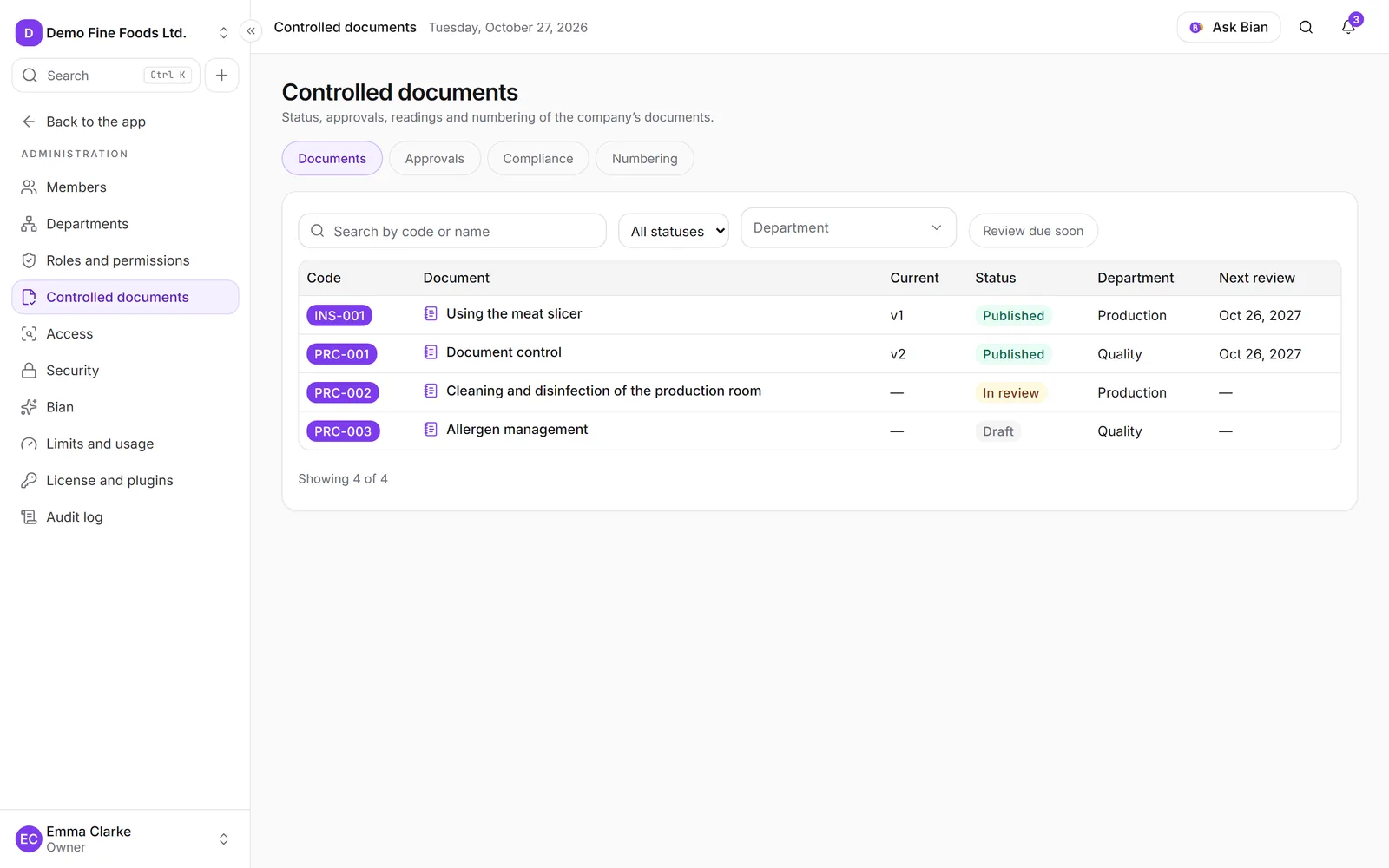
The code is built from the type’s prefix and a number that goes up on its own: PRC-001, PRC-002… Each type also sets how many months apart it’s reviewed, which gives each document its Next review date.
Types, prefixes and numbering are configured in Administration › Controlled documents › Numbering. Changing the prefix or the padding only affects new codes, and the counter can only go up (lowering it would repeat codes already in use).
Statuses
Each version goes through these statuses:
- Draft: it’s being written and edited.
- In review: it was sent to the approvers. The content is frozen.
- Approved: everyone approved; it’s ready to publish.
- Published: it’s the current version. There’s only one.
- Obsolete: the version that was current until a new one was published. It isn’t deleted.
A Rejected version is discarded and stays in the history without being published.
The current version
- People who can only view the document always read the current version, even while changes are in progress. A notice tells them the code and version they’re viewing.
- People who edit work on the draft. Editing a published document opens a new draft version; the current one doesn’t change until the new one is published.
- Bian and QR codes always use the current version.
The control dialog
Document control brings together everything about the document:
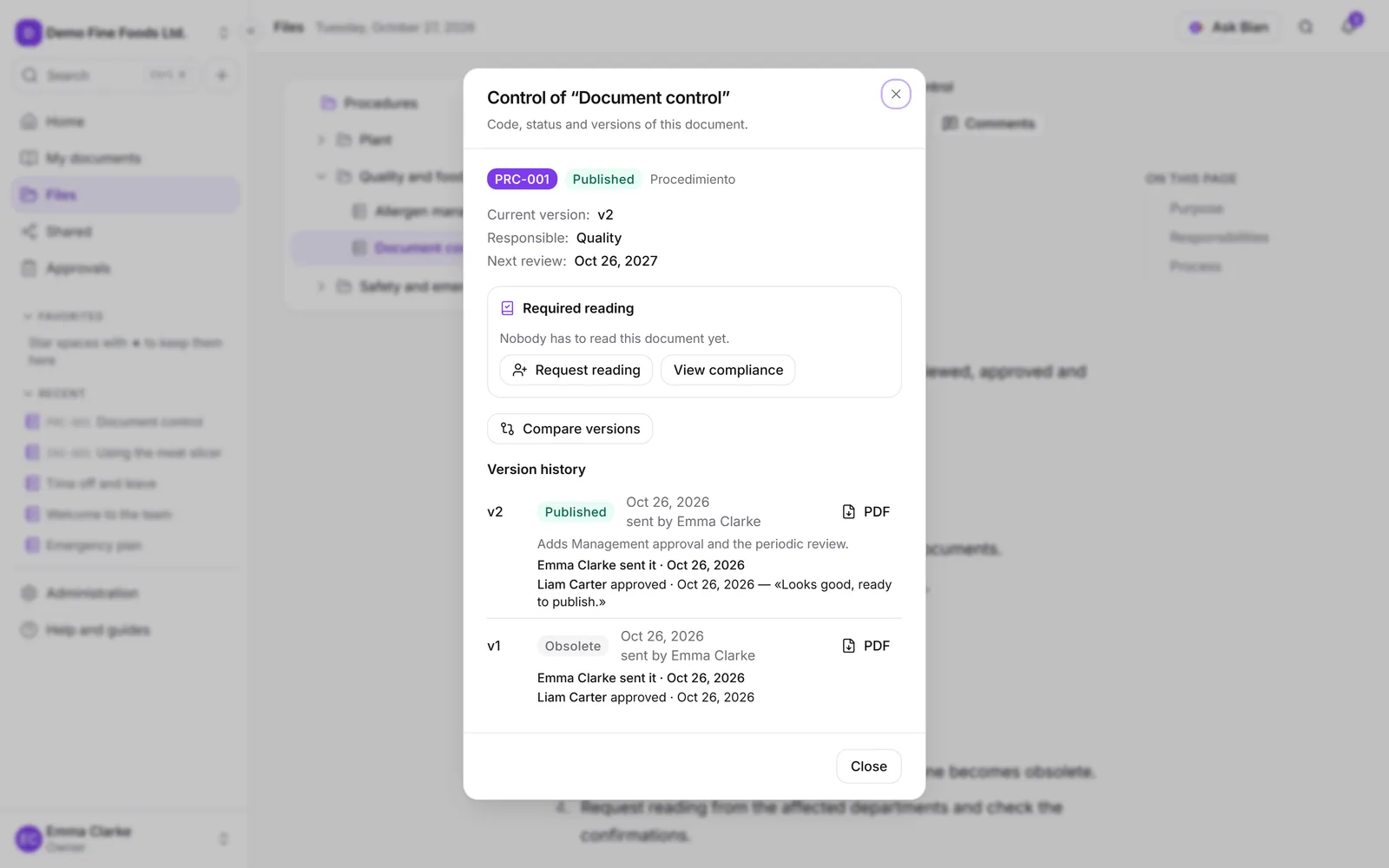
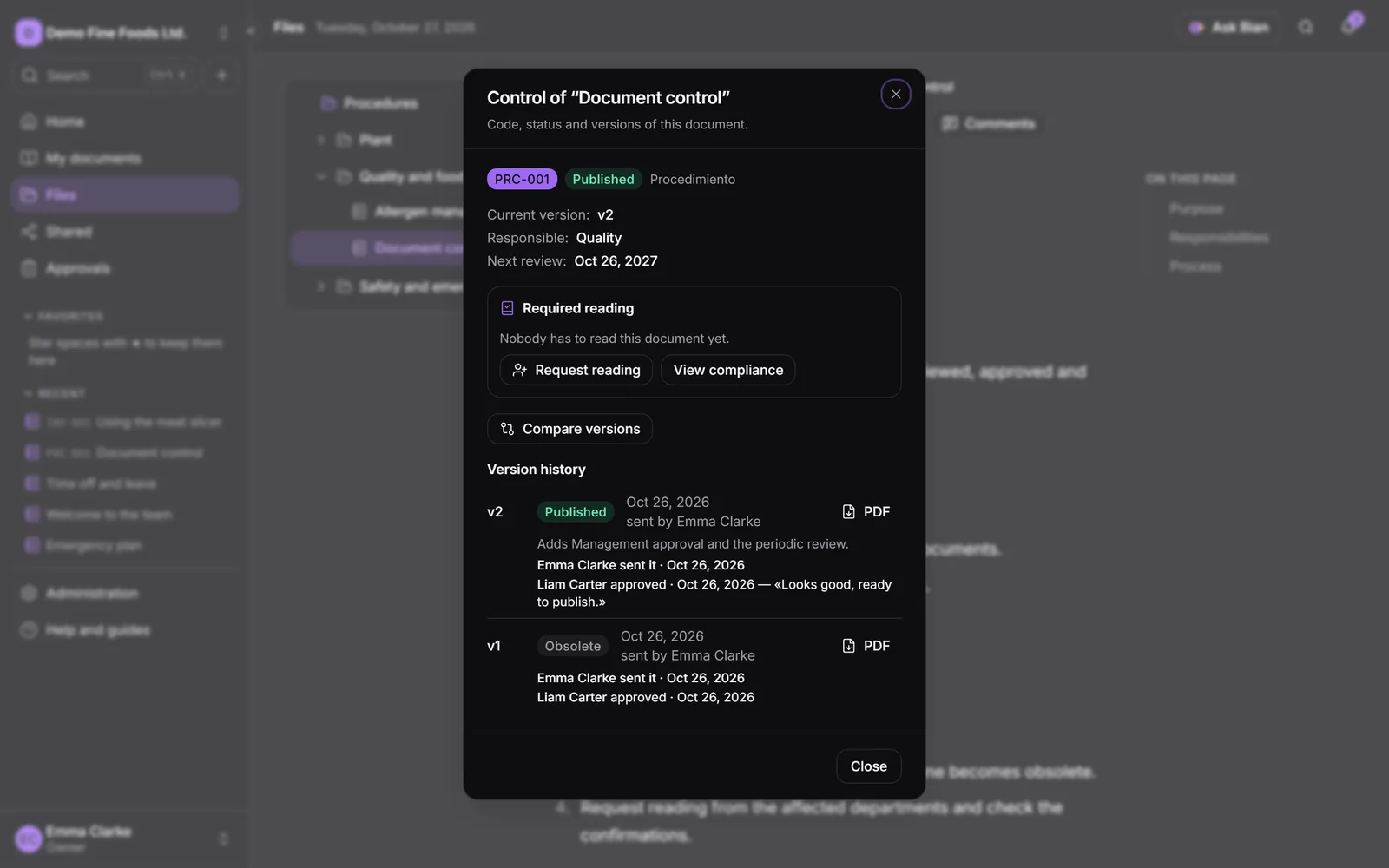
- Current version, Responsible and Next review.
- The actions available to you: Send for review, Approve, Request changes, Reject, Publish or Withdraw from review.
- Compare versions, if there’s more than one.
- Version history: each version with its status, who sent it, who approved it, the reason for the change and whether it was a Minor change (published without requesting a new reading).
- Required reading, once there’s a published version (see Required reading).
Publish
Whoever can approve the document publishes it, once the version is Approved. In Publish this version?:
- The version becomes the current one and the previous one becomes obsolete.
- Request a new reading from everyone who had to read the previous version is checked. If you uncheck it, it counts as a minor change and the previous readings remain valid.
- Reason for the change: one line for those who need to reread it.
Compare versions
Compare versions shows additions in green and removals in red strikethrough. Choose the Starting version (by default, the current one or the previous one) and the Version to compare (by default, the newest one), and check Changes only to hide what didn’t change. For pages the text is compared; for files, for now, only the details of each version.
Controlled PDF
In the Version history, every published or obsolete version has a button to download its controlled PDF:
- It starts with a control sheet: company, code, title, version, effective date, who prepared it and who approved it.
- Every page carries the footer “Uncontrolled copy · downloaded by … on …”, with your name and the date. Obsolete versions also carry “OBSOLETE” diagonally.
- For PDF files, the control sheet is added to the original. Pages are converted to PDF with Gotenberg; if your installation doesn’t have it, you’ll see a notice (see Gotenberg).
The document list
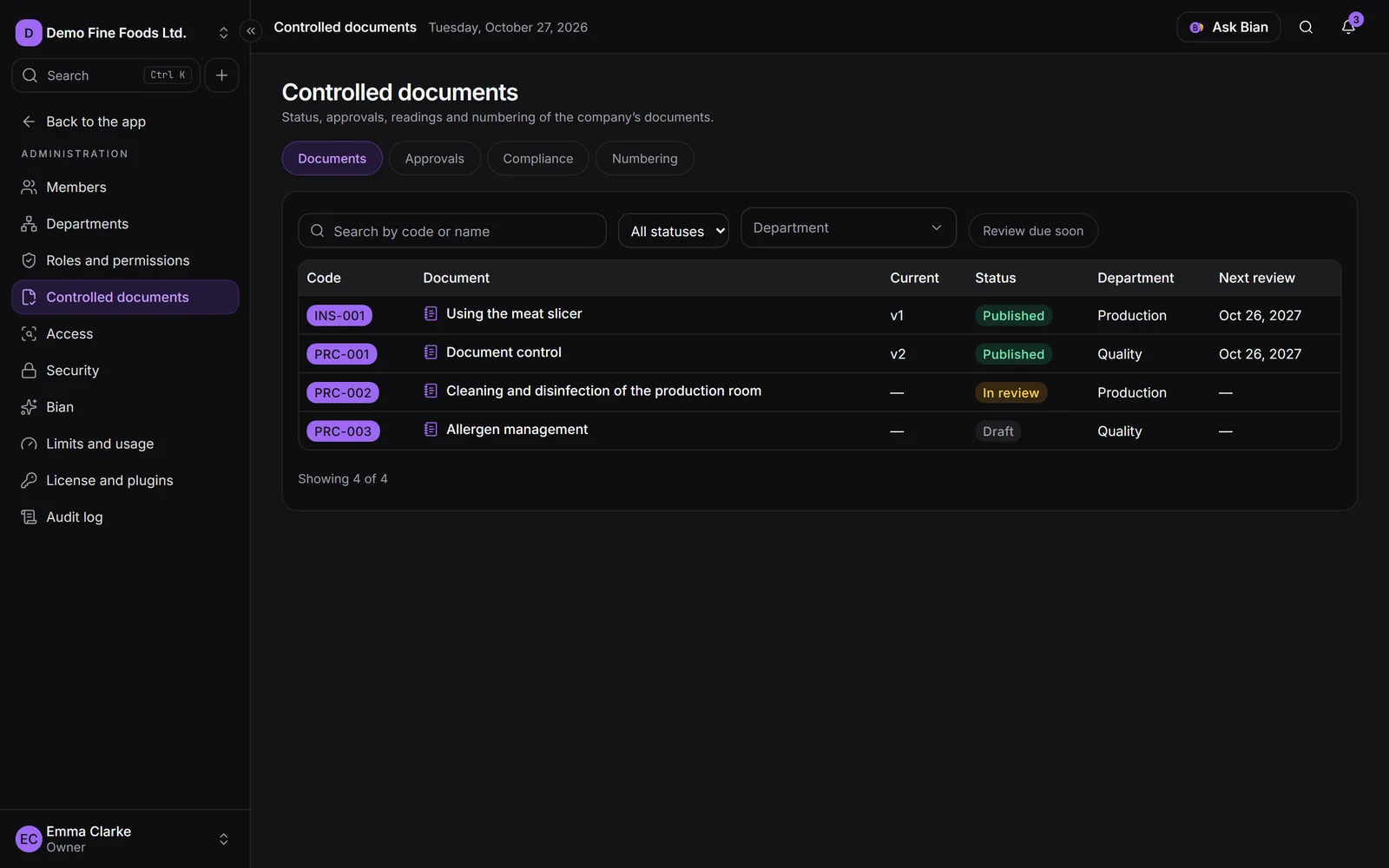
People who approve documents, request readings or lead an area have Administration › Controlled documents: the list with code, current version, status, department and next review, with filters and search, plus the Approvals, Compliance and Numbering tabs. A head only sees their area’s documents.