 SpiderFolio
Get started
First administrator
Create your company on the new installation, protect your account with two-step verification and grant access to the server back office.
With SpiderFolio installed (Install on your server), you need the first person: the one who creates the company and becomes its owner. This guide covers that first day.
1. Create the company
- Open your installation’s address followed by
/register(for example,https://docs.your-company.com/register). You can also get there from the sign-in screen with Get started for free. - Fill in Full name, Company name, Email and Password (at least 10 characters).
- Tick I accept the Terms and conditions and the Privacy policy and click Create account.
Whoever signs up creates the company and gets the Owner role: they can do everything, including the Security section, which only the owner can manage.
One installation can host several companies, each with its data isolated. For now, sign-up stays open to
anyone who reaches /register: if your server is only for your company, don’t publish it outside your
network, or keep an eye on new companies from the back office (step 4).
2. Confirm your email
You’ll get an email with a link. Until you open it, you can’t invite your team or publish documents, and Home reminds you with a banner. If it doesn’t arrive, check your spam folder and the server’s email settings (Troubleshooting).
3. Turn on two-step verification
You’re the most powerful account in the company: protect it with a second factor.
- Click your name at the bottom of the sidebar and choose My profile.
- Under Two-step verification, click Turn on.
- Scan the code with your authenticator app (Google Authenticator, Microsoft Authenticator or another). If you can’t scan it, click Can’t scan it? Show the key and type it in.
- Enter the 6-digit code shown in the app and click Turn on.
- Save Your recovery codes (Copy or Download) somewhere safe and click I’ve saved them. Each code works only once and they won’t be shown again.
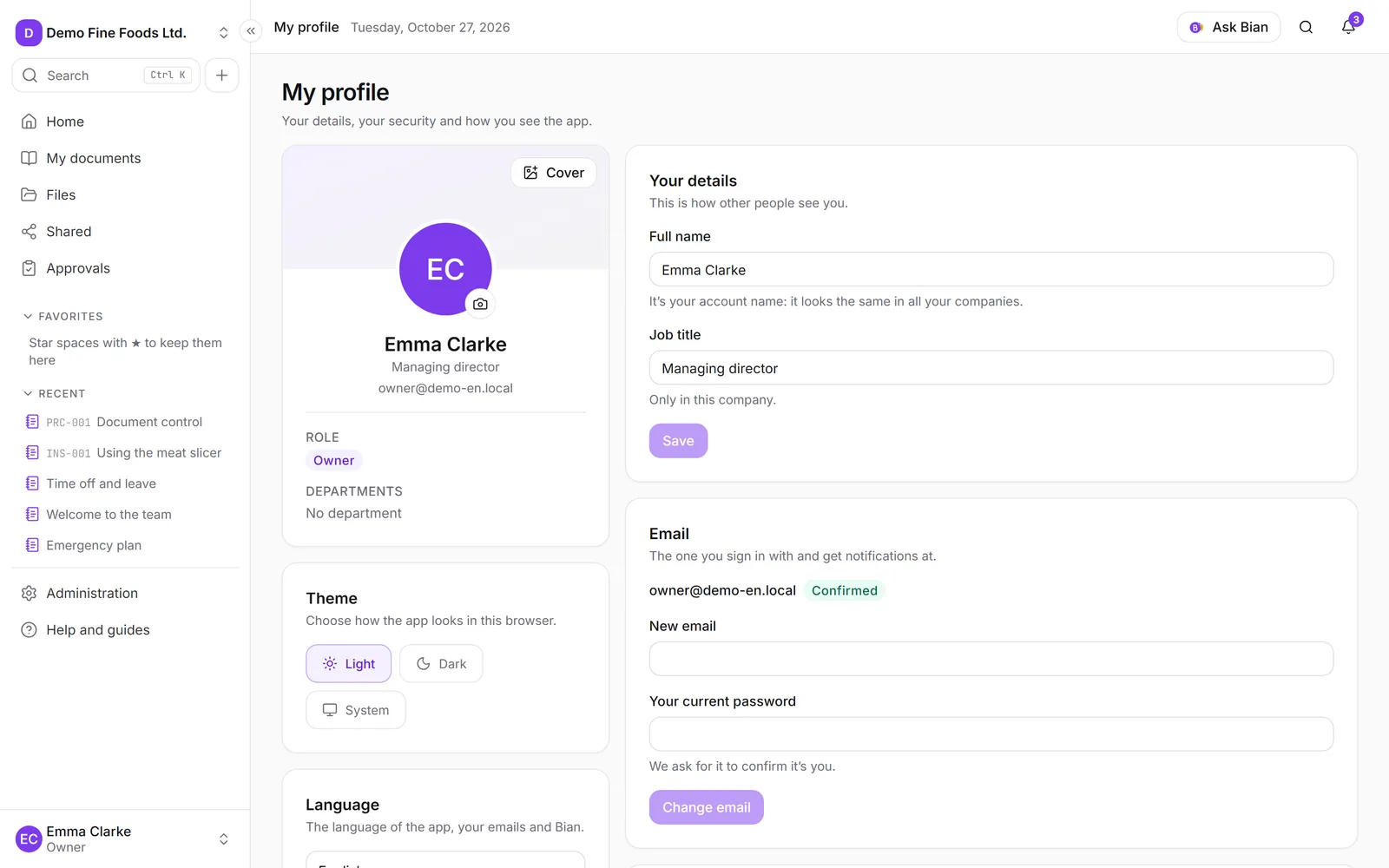
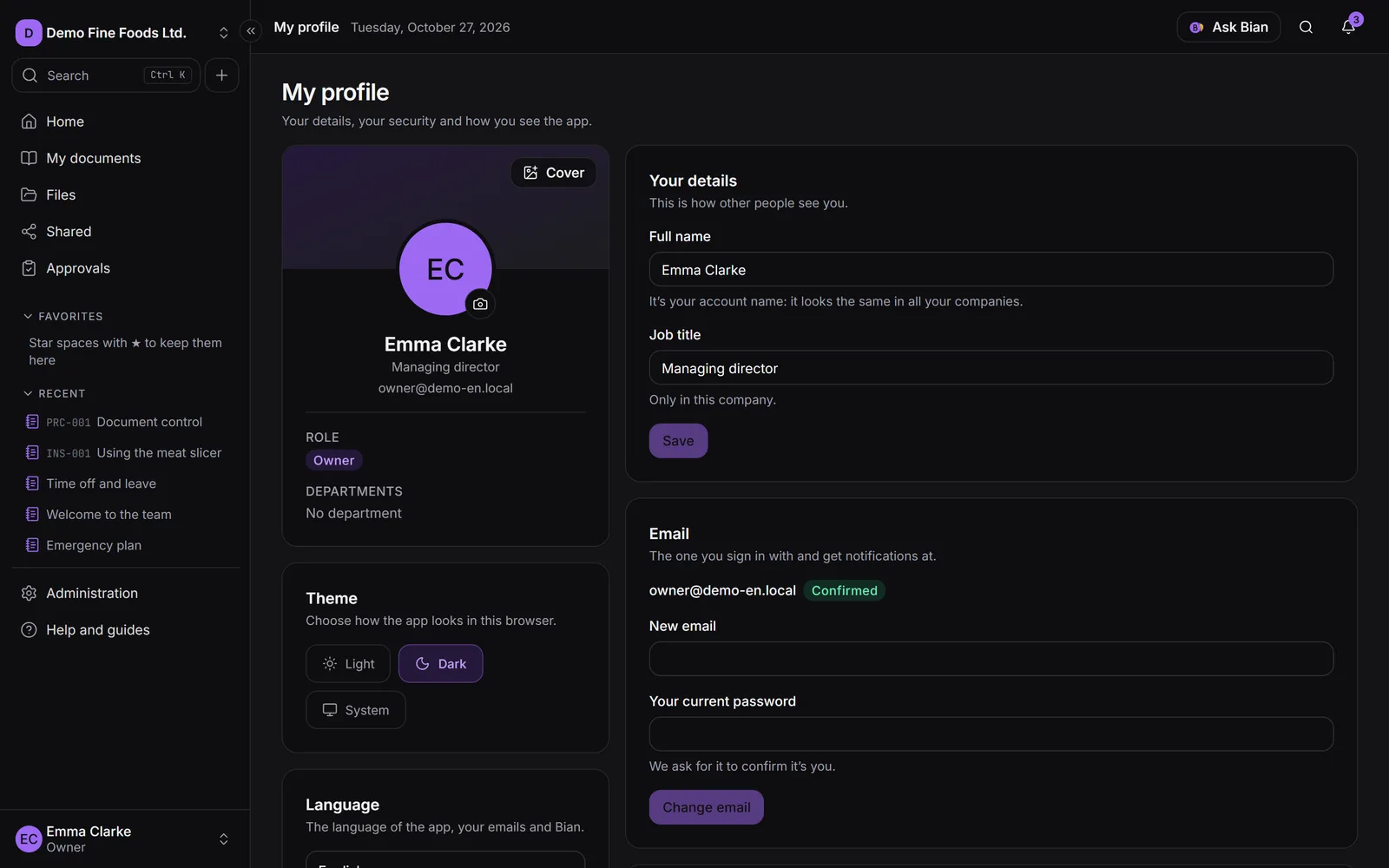
More in Security and two-step verification.
4. Grant access to the server back office
The back office (/internal, Companies on this installation) is for whoever manages the server: it
lists every company on the installation with its usage and limits. Counts only, never content.
There’s no button for it: you flag the person in the database. Their account must already exist. From
the server’s deploy/ folder:
docker compose exec db psql -U spiderfolio -d spiderfolio \
  -c "UPDATE \"User\" SET \"isStaff\" = true WHERE email = 'you@example.com';"
If you changed POSTGRES_USER or POSTGRES_DB in .env, use those values for -U and -d.
- The person must have two-step verification turned on: without it, the back office won’t open.
- For everyone else,
/internaldoesn’t exist (it responds like a page that can’t be found). - To remove access, run the same command with
false. It takes effect immediately.
It’s an installation-level permission, not a company one: the person doesn’t need to be a member of any company.
5. Recommended first steps
-
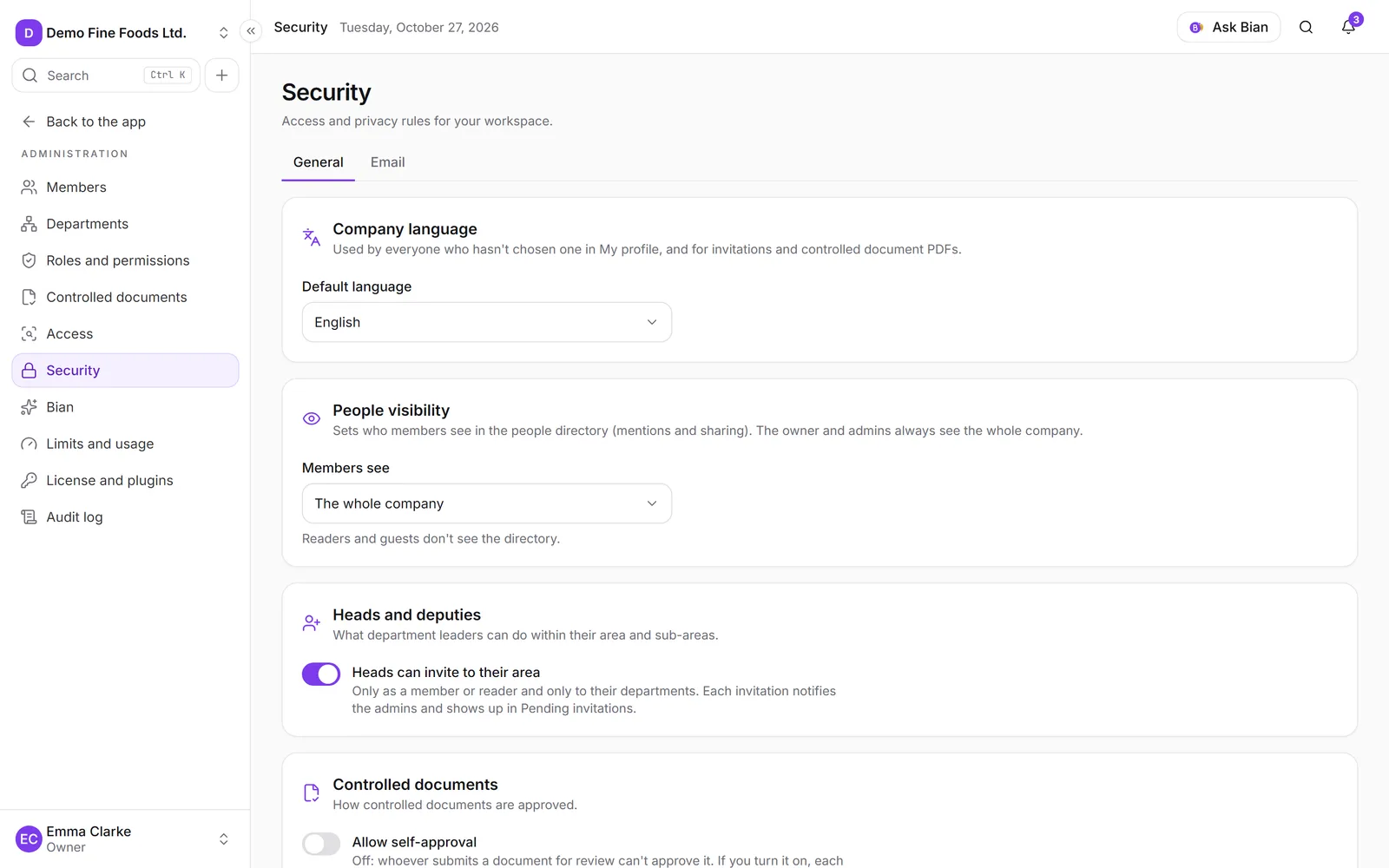
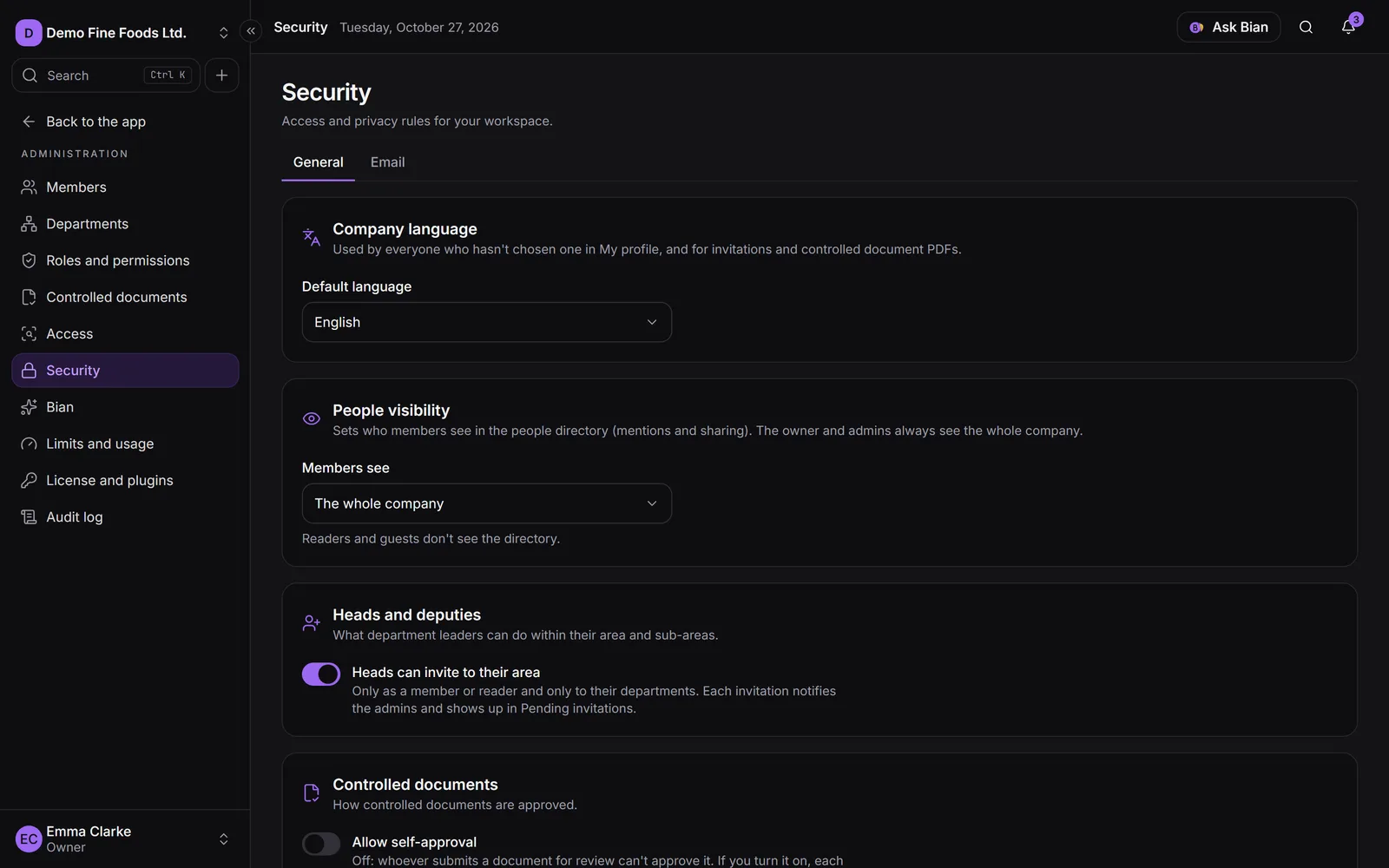
Review the company’s security: in Management › Security, choose the Company language, People visibility, whether controlled documents allow self-approval and what department heads can do.
-
Set up departments in Management › Departments: permissions build on them (Departments).
-
Invite your team from Management › Members (Invite people). Give the admin role only to those who need it (Roles and permissions).
-
Set limits if you want to cap storage or file size, in Management › Limits and usage (Limits). There are none by default.
-
Schedule backups before you load real data (Backups).
-
Optional: the company’s own SMTP email and Bian.