 SpiderFolio
Administration
Roles and permissions
What each person can administer: system roles, custom roles, capabilities and the Plugins group.
What a role is
A role is a set of admin capabilities: what a person can manage (members, departments, spaces, the audit log…). The role does not decide what content they see: that comes from their departments and each space’s access. And what heads and deputies can do comes from their position in the department, not from the role (see Departments).
The section is in Administration › Roles and permissions and you need the Manage roles capability.
System roles
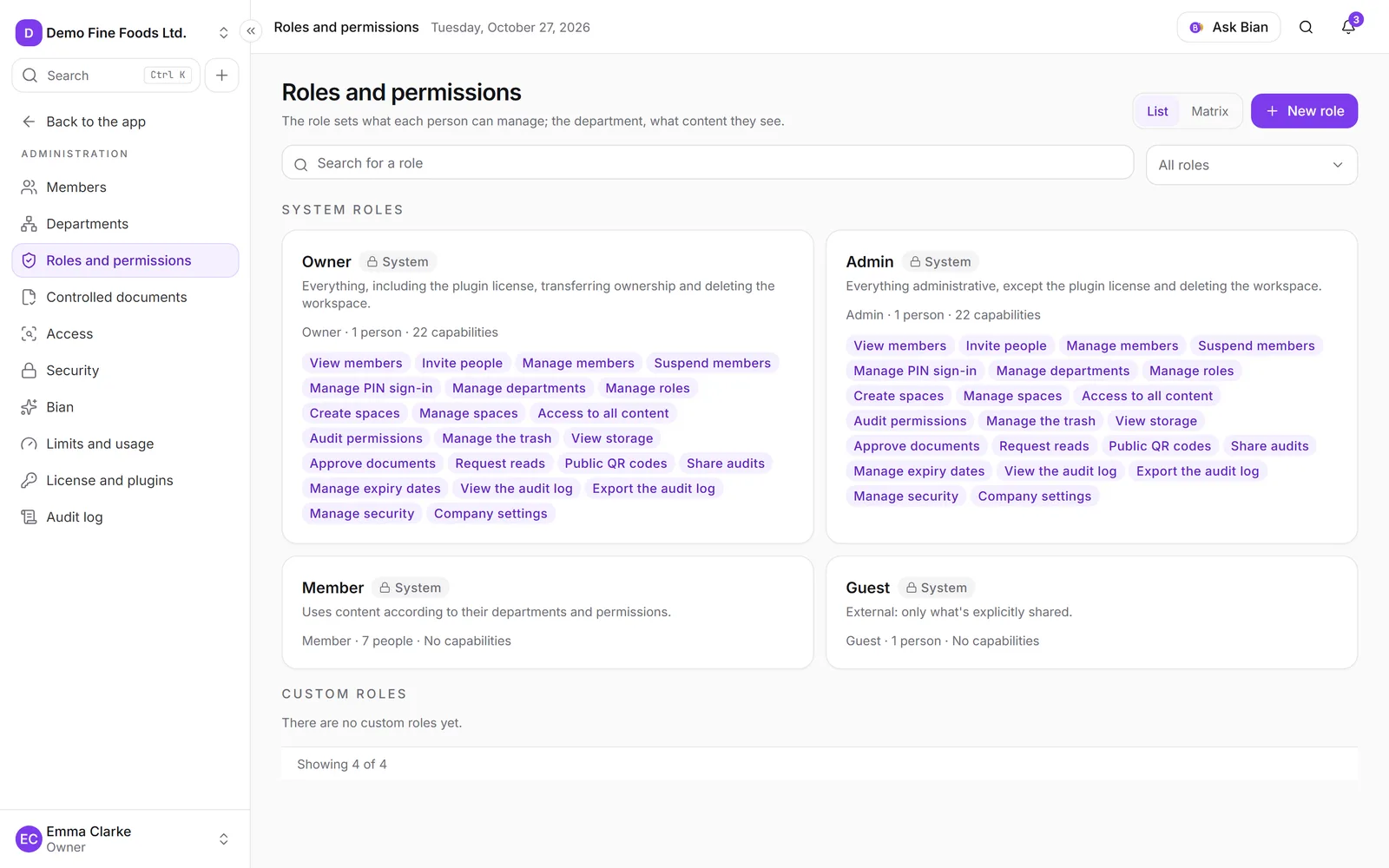
There are four. Every company has them and they can’t be changed or deleted:
- Owner: everything, including the plugin license, transferring ownership and deleting the workspace. There’s always at least one. It’s the only role that sees Security › General and License and plugins.
- Admin: everything administrative, except the plugin license and deleting the workspace.
- Member: uses content according to their departments and permissions, with no admin capabilities.
- Guest: an external person. They only see what’s explicitly shared with them, always with a reader seat and no departments.
Custom roles
Use them to give someone just part of the administration. For example, a Quality manager can be a Member with Approve documents, Request reads, Audit permissions and View the audit log.
- Click New role.
- Enter the Name and, if you like, the Description.
- Choose the Base role: Admin (admin level), Member (member level) or Guest (external, no admin capabilities).
- Turn on the Capabilities. Each one explains what it allows.
- Click Create.
To change a role, use the pencil on its card; to delete it, the bin. Each card says how many people have it and how many capabilities it grants.
Capabilities
They’re grouped by area:
| Group | Capabilities |
|---|---|
| Members | View members, Invite people, Manage members, Suspend members, Manage PIN sign-in |
| Organization | Manage departments, Manage roles |
| Content | Create spaces, Manage spaces, Access to all content, Audit permissions, Manage the trash, View storage |
| Controlled documents | Approve documents, Request reads, Public QR codes, Share audits, Manage expiry dates |
| Audit log | View the audit log, Export the audit log |
| Administration | Manage security, Company settings |
| Plugins | The ones the active plugins bring (only shown if there are any) |
Access to all content lets someone see content even without permission: use it with care.
The Plugins group
Each installed plugin can add its own capabilities, with their own name and explanation (for example, the MCP connector’s). The owner has all of them from the start; admins don’t. If you want someone else to use a plugin’s admin features, the owner creates a custom role with those capabilities and assigns it. See License and plugins.
Rules
- You can only give capabilities you have. The rest appear greyed out with the notice “You can’t grant this capability because you don’t have it.”
- You can’t create a role with a base role above yours, or change or delete a role that grants more power than you have.
- A guest role has no capabilities.
- A role with admin capabilities can’t be given to a reader: it needs a full seat.
- A role in use can’t be deleted: first change those people’s role and revoke the pending invitations with that role.
- Creating, changing and deleting roles is recorded in the audit log.
List and Matrix
At the top right, switch from List to Matrix: every role in columns and every capability in rows, with a mark where the role has it. It’s handy for comparing at a glance. In both views you can search for a role and filter by Type (All roles, System, Custom).