 SpiderFolio
Administration
Invite people
Bring your team in with a link by email: one at a time, several at once or by importing a CSV.
Everyone joins the company through an invitation: they get an email with a link, create their account (or use the one they already have) and end up with the role, seat and departments you chose.
Before you start
- You need the Invite people capability. Heads and deputies can also invite to their area (see below).
- Your email must be confirmed. If it isn’t, when you send you’ll see “Confirm your email to be able to invite.”
- The installation needs a working email server: see SMTP email.
Invite
- In Administration › Members, click Invite people.
- Enter the Emails: one per line, or separated by commas or spaces. Up to 50 at a time.
- Choose the Role. Only the roles you can give appear.
- The Seat stays on Automatic: a full seat for members and admins, reader for external guests. You can choose another one when the role allows it.
- Tick the Departments they join. An external guest can’t join departments.
- Click Send invitations.
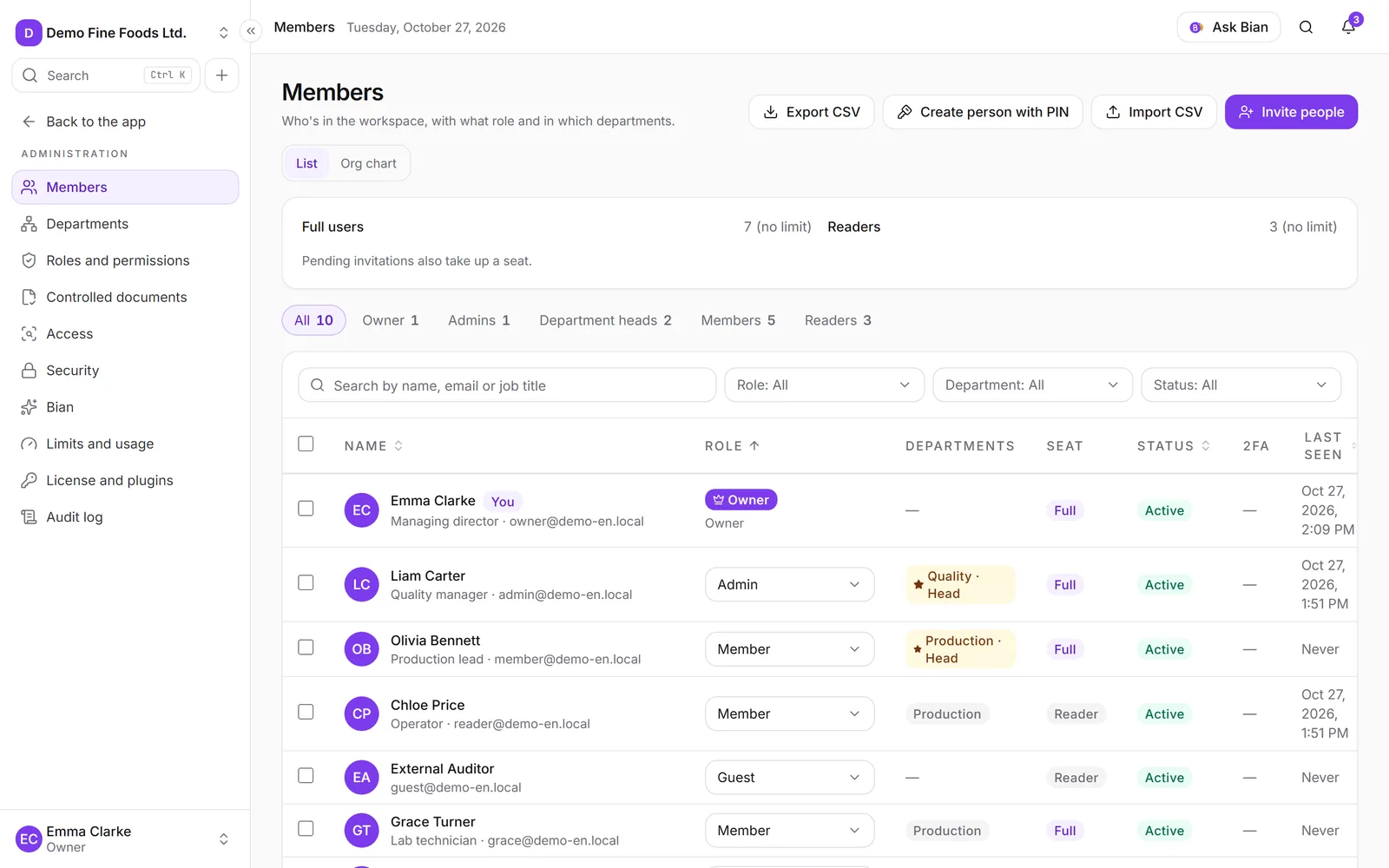
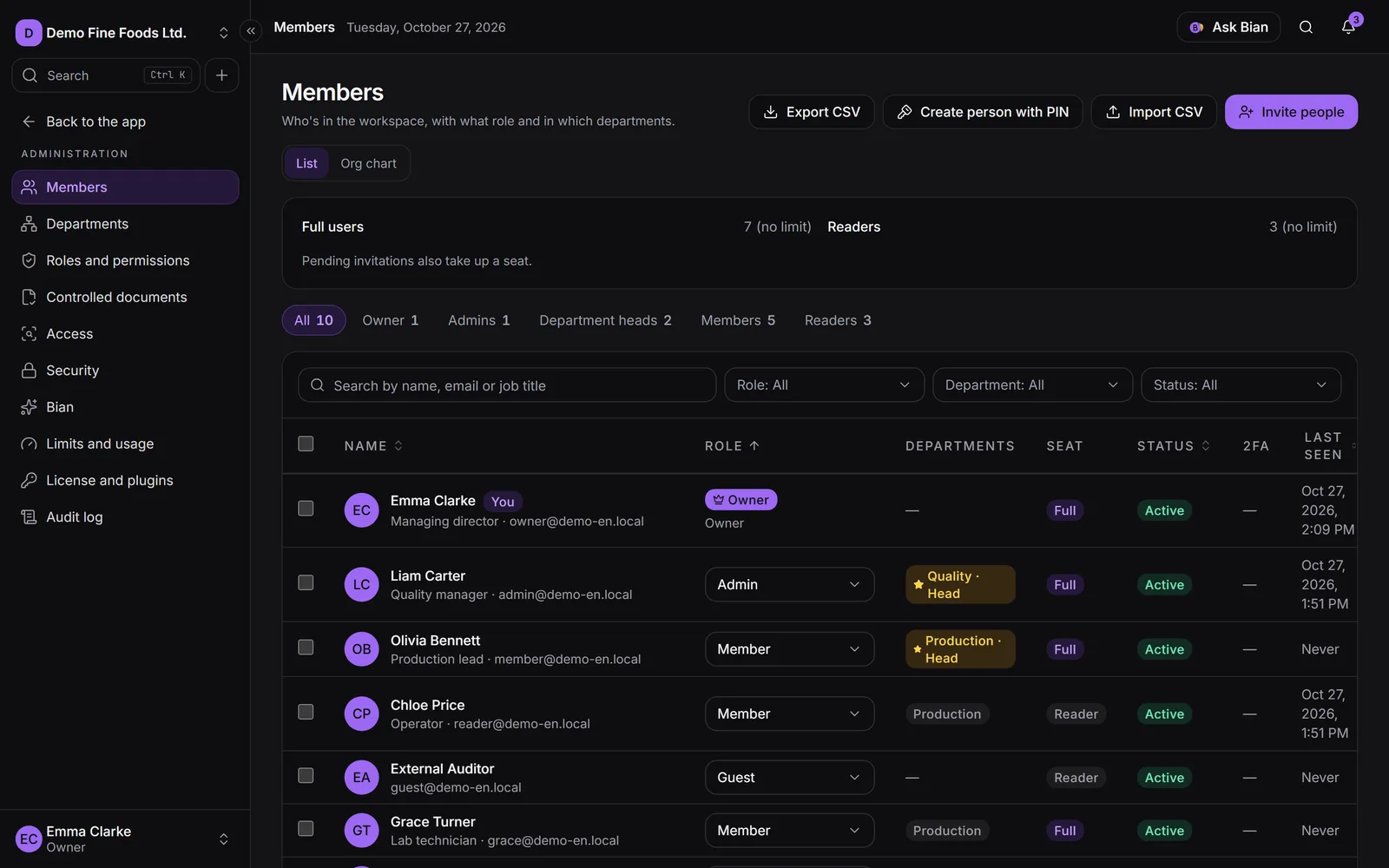
Each person gets an email with a link that expires in 7 days. Anyone who’s already a member or already has a pending invitation is skipped, and we tell you how many were skipped.
If your company uses the Advanced security policies plugin with allowed domains, you can only invite emails from those domains (external guests are the exception). Otherwise you’ll see “These emails aren’t from an allowed domain.”
Invite as a head or deputy
If you lead a department, you can invite to your area from My team, with these conditions:
- Only as a member or reader, never with an admin role.
- Only to your departments and their sub-areas.
- Each invitation shows up in Pending invitations and in the audit log, and admins can revoke it.
The owner can turn this off in Administration › Security, Heads can invite to their area.
Pending invitations
Below the members table are the Pending invitations, with Email, Role, Seat, Expires and Invited by. You can search by email and filter by Status (All, Active, Expired). On each one:
- Resend: sends a new email and renews the deadline. The previous link stops working.
- Revoke: the link stops working and the seat is freed. You can invite the person again anytime.
A pending invitation takes up a seat (full or reader) until it’s accepted, expires or is revoked.
Import from a CSV
For many people, click Import CSV. The file has one row per person and these columns:
| Column | What it holds |
|---|---|
email |
Required. |
role |
The name of a role. If missing, Member. |
departments |
Names separated by |, for example Quality|Production. |
seat |
FULL or READER. If missing, the one that matches the role. |
The first row holds the column names (the Spanish ones, rol, departamentos and plaza, work too).
Cells can be separated by commas or semicolons, so a file saved from Excel works as is.
- Choose the CSV file (up to 200 KB and 500 rows) or Or paste the content.
- Click Preview. Each row is marked Ready, Skipped (already a member or already invited) or Error with its reason: invalid email, duplicate in the file, a role or department that doesn’t exist, a role you can’t give, an invalid seat or a domain that isn’t allowed.
- When it looks right, click Invite valid rows.
What the invited person sees
The link in the email opens the You’re invited to join screen, with the company name, who invited them and with which role:
- If they don’t have an account, they enter their Full name, choose a Password (at least 10 characters) and click Accept and continue. Their email is confirmed and their account takes the screen’s language (their browser’s, or the one they pick with the ES / EN switch).
- If they already have an account, they click Sign in, sign in with that account and then click Accept invitation. If they’re signed in with a different account, the screen tells them.
If the link has expired or was already used, the screen says so: they need to ask whoever invited them for a new one.