 SpiderFolio
Administration
Departments
Your company's structure: areas and sub-areas, their heads and deputies, who belongs to each one and what each position can do.
What they’re for
The role sets what a person can administer; the department, what content they see. That’s why access to spaces and documents is given to departments rather than person by person: when someone changes area, their access changes with them.
Departments form a tree: Finance can have the sub-areas Accounting and Treasury, and each sub-area its own, with no limit on levels.
Where to find it
- Owner and admins (Manage departments capability): in Administration › Departments, with every department.
- Heads and deputies: in Administration › Departments, only with the ones they lead and their sub-areas. Outside their scope, a department doesn’t exist for them.
- Members with a full seat: in the main menu, next to Files, to look at the structure without changing anything. Readers and guests don’t see it.
Two views
Next to the title you choose the View:
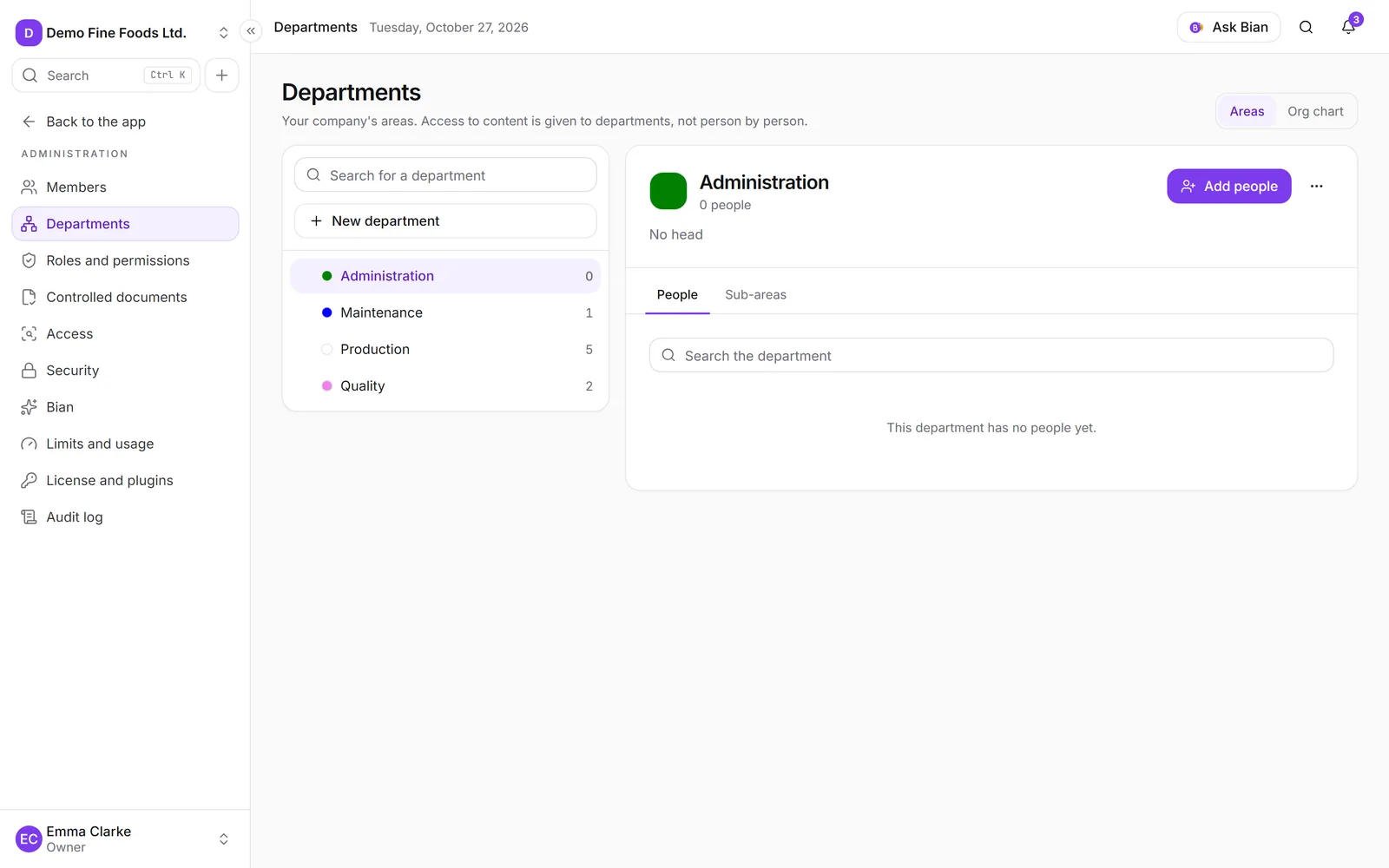
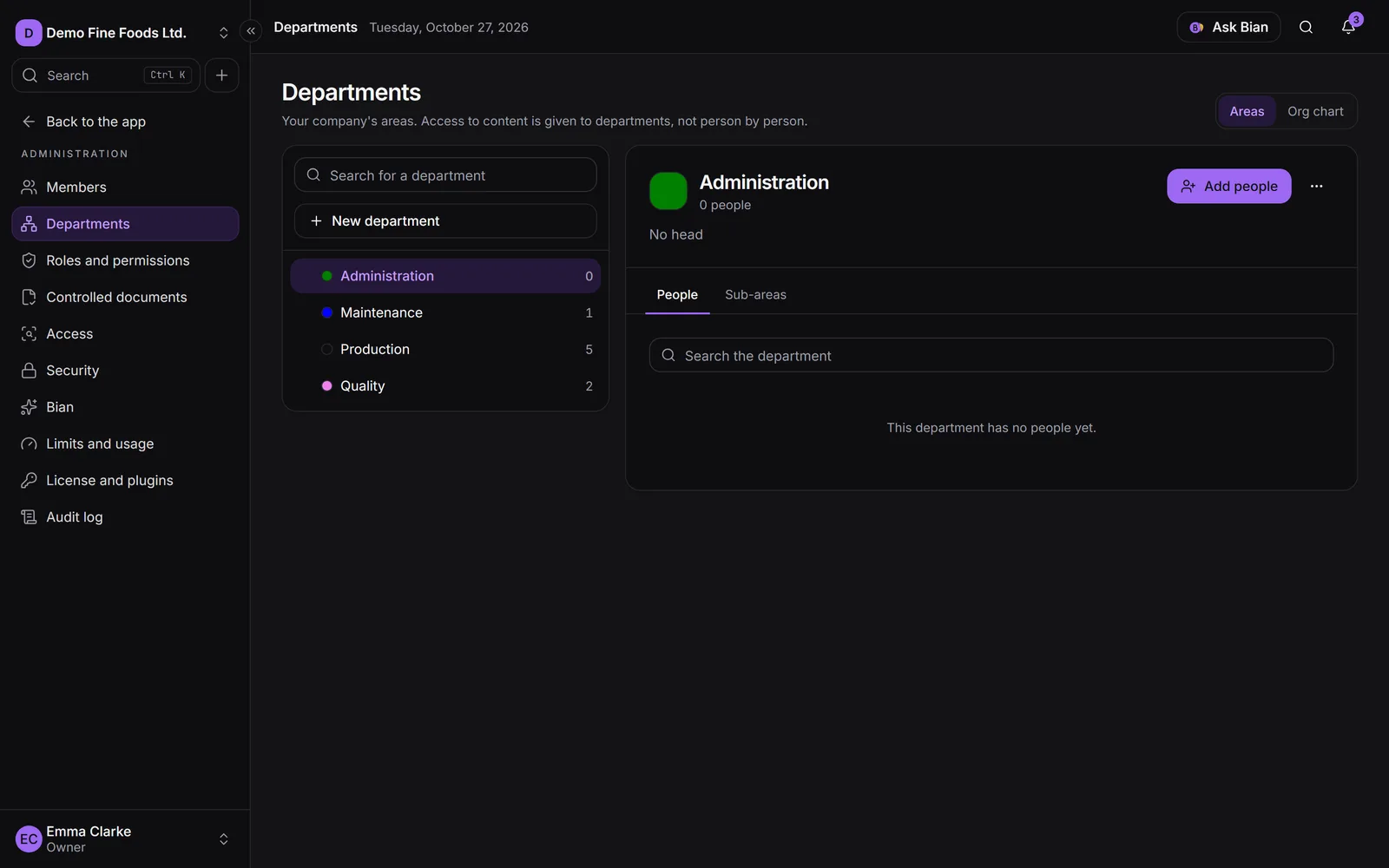
- Areas: the tree on the left and the selected department on the right. On a phone, the tree goes on top and the details below.
- Org chart: the whole company as a tree, with a search box. Clicking a department takes you back to Areas with that department open.
The tree
- Click the name to open that department. The arrow only expands or collapses the branch.
- Each row shows how many people it has. At the top there’s a search box and, if you can manage departments, New department.
- With the keyboard: ↑ ↓ move, → expands, ← collapses or goes up to the parent, Enter selects.
- The selected department is kept in the page address: Back, Forward and direct links work.
The details
At the top you see the path (for example Finance › Accounting, each level is a link), the name, the Head (★) and the Deputies (☆). If it’s an area you lead, you’ll see the Your area label. There are two tabs:
- People: who belongs to it. Each row has the position selector (Head, Deputy, Member), which saves instantly, and a menu with Remove from department. Add people searches the company directory.
- Sub-areas: the direct sub-areas, with their head and number of people. Click one to open it. With Manage departments you also get New sub-area.
Heads and deputies
Each department has at most one head and can have several deputies. The position isn’t the role: a member can be the head of their area, and an admin can be a head too (that only organizes the org chart, since they already manage the whole company).
The position gives scope over the department and all its sub-areas, at any depth. If someone stops being head or deputy, they lose that scope right away.
What they can do, always within their area:
| Head | Deputy | |
|---|---|---|
| See their people in My team (email, seat, status, last seen) | Yes | Yes |
| Add, remove and move people between their areas | Yes | Yes |
| Appoint or remove deputies | Yes | No |
| Invite people to their area as a member or reader | Yes, if the owner allows it | Yes, if the owner allows it |
| Approve their area’s controlled documents | Yes | Yes |
| Manage their department’s spaces | Yes | Yes |
What they can’t do: change anyone’s role, seat or status, appoint heads, or act on admins, the owner, other heads or themselves.
To act in the position they need a full seat. A reader can be listed as head, but the position gives them no scope; the Structure review (in Members, Org chart view) flags it.
Appointing a new head makes the previous one a member of the department. Only the owner and admins appoint heads.
Create, edit and delete
You need Manage departments.
- Click New department (or New sub-area from the Sub-areas tab).
- Enter the Name (unique in the company) and, if you like, the Description and Color.
- Under Inside, choose the parent department, or None (top level).
- Choose the Head, if you already know who it is.
- Click Create.
The menu in the details header (the three dots) has Edit (also to move it inside another department), Create its space and Delete. Before deleting we tell you how many people will no longer belong to it and lose the access it gave them; its sub-departments move up one level. It can’t be undone.
Every change to departments, membership and positions is recorded in the audit log.